What?
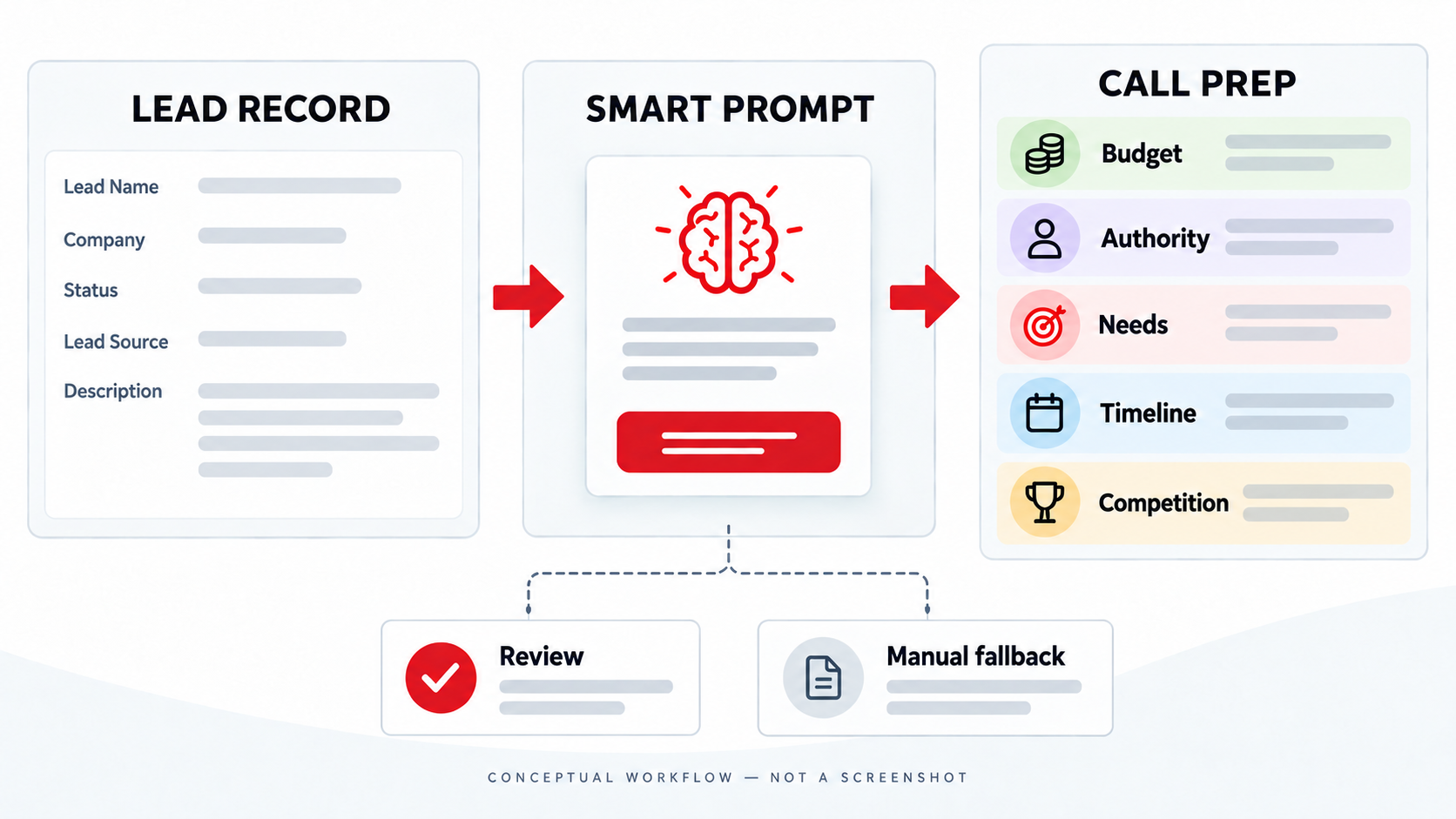
A quick article on creating a button off a Lead record in ZohoCRM to prep your sales team with a script to sales qualify the prospect.
For a first call with a prospect, I want the salesperson to have a short set of questions ready, not a summary that pretends we already know the answers. This example puts a Call prep button on a Zoho CRM Lead. Its prompt produces a spoken guide for qualifying the lead against BANTC: Budget, Authority, Needs, Timeline and Competition.
Why?
The rep opens a Lead, clicks Call prep, and gets an opening, BANTC questions, optional follow-ups and a closing question. The output is a guide for a conversation, not a qualification score or a claim that the prospect has a budget, deadline or preferred supplier.
Zoho’s Prompt Builder inserts fields from the module in which the button runs. Its published example did not support related-module fields. Check the merge fields offered in your own Lead prompt editor; do not assume that the button can read Notes, emails or the Timeline just because they appear on the Lead page. The rep should review those separately before calling.
It is easy to leave a discovery call without knowing who approves the purchase or what alternatives the prospect is weighing. BANTC gives the rep five areas to cover. A generated guide can adapt the wording to the Lead’s known context, but it must ask about unknowns rather than turn them into facts.
How?
Do note that this seems to be available only in the .COM datacenter (US) from what I can tell... On the EU datacenter, instead of Execute Prompt you should see Execute Agent then select Master AI Agent rather than the Qwen models available in a US instance of ZohoCRM. If my client were on the EU datacenter then I'd prefer to execute a function which can send the information to the preferred AI model over API.
1. Prepare a test Lead
Start in a sandbox with a fictional Lead. Fill in the fields you would reasonably use to prepare for a call, such as Lead Name, Company, Industry and Description. Keep the Description factual: for example, “Asked about replacing manual reporting; no budget or deadline discussed.” Decide which fields the model needs, and leave out the rest.
2. Add the button to Leads
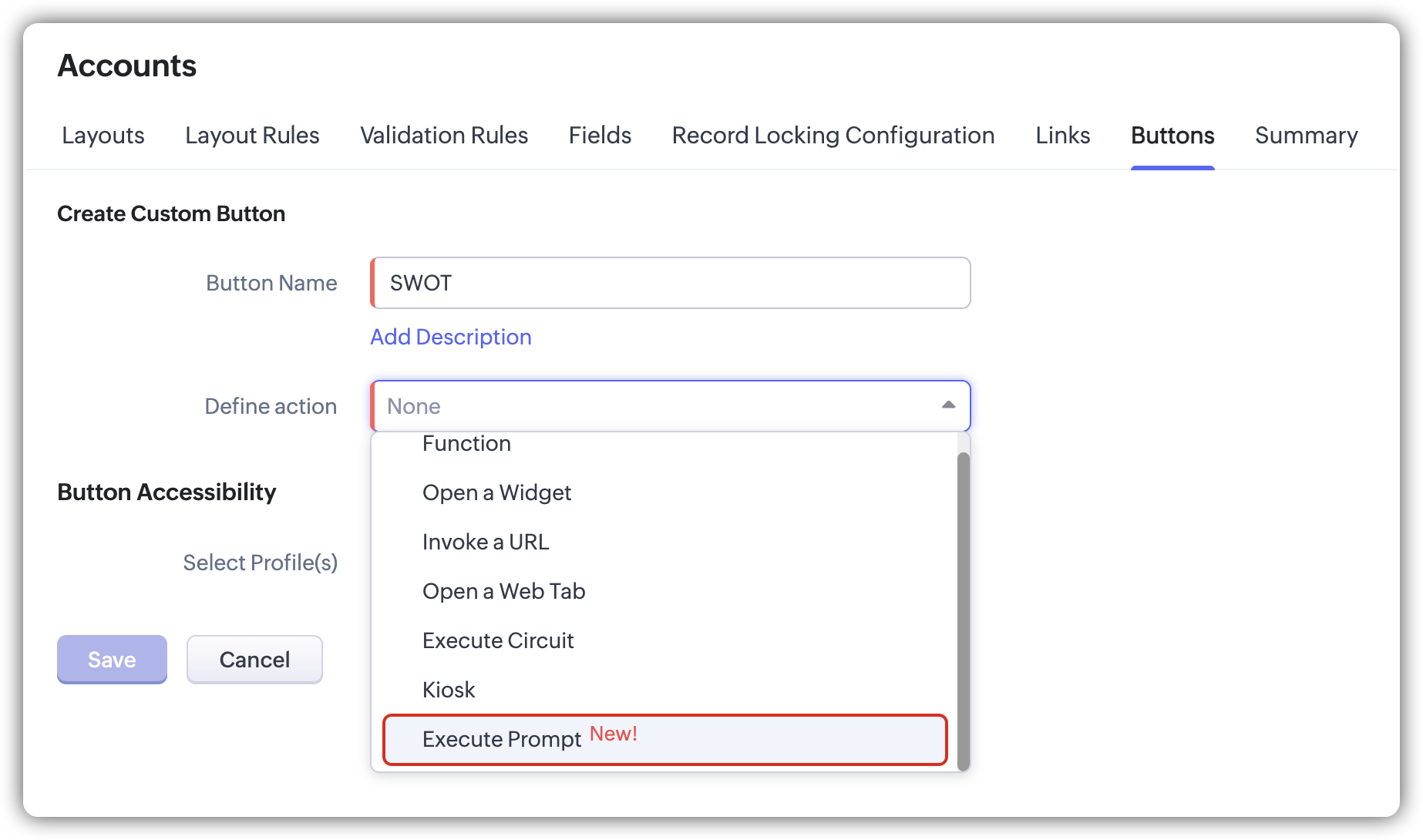
In CRM, open Setup → Customization → Modules and Fields → Leads → Buttons. Create a button on the Lead details page called Call prep and select the profiles allowed to use it. If Execute Prompt is available, choose it and associate the prompt. Otherwise, use a custom function to pass only the selected Lead fields to the chosen model’s API. The screenshot shows Zoho’s Execute Prompt example; the available actions vary by account.
3. Ask for a spoken BANTC script
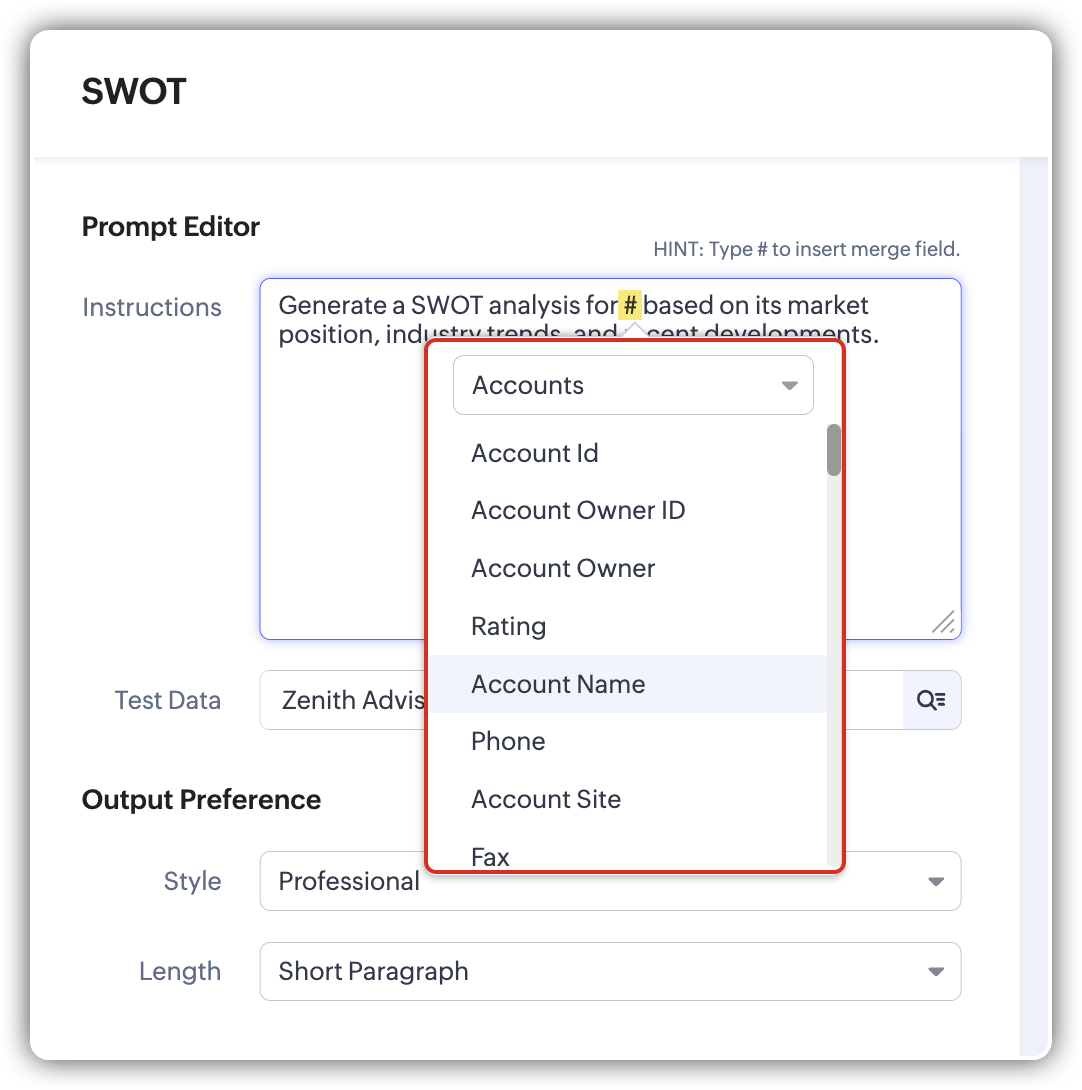
Use the prompt editor’s merge-field picker to insert actual Lead fields. The square-bracket lines below are reminders for the editor, not Zoho merge syntax.
You are preparing a salesperson for a first qualification call with a prospect.
Using only the Lead fields supplied below, write a short, natural spoken
conversation guide. Do not answer the questions for the prospect and do not
score or label the lead as qualified.

Start with a friendly opening that asks permission to explore the prospect's
situation. Then use these five headings, in this order: Budget, Authority,
Needs, Timeline, Competition. Under each heading, give one open question the
salesperson can say aloud and one optional follow-up question.

Budget: ask about an available range or financial constraints; do not assume
that money has been approved.
Authority: ask who will be involved in evaluating and approving a decision.
Needs: ask what problem they want to solve and what a useful result looks like.
Timeline: ask when they hope to act and what is driving that timing.
Competition: ask what other approaches, existing suppliers or options they
are comparing, without assuming a named competitor.

Use known Lead context to make at most two questions more specific. Do not
speak internal CRM fields such as Lead Source or Status aloud. If a BANTC
fact is missing, make it a question; never invent a budget, decision-maker,
need, date or competitor. Avoid promises and pushy wording.

End with a one-sentence recap template containing blanks for the prospect's
answers, followed by a clear question about the next step. Output the guide
only, with the five BANTC headings and short spoken lines.

Lead name: [insert Lead Name field]
Company: [insert Company field]
Industry: [insert Industry field, if useful]
Description: [insert Description field]
Remove any line without a suitable field. Keep a copy of the prompt so changes can be compared during testing.
4. Preview the script
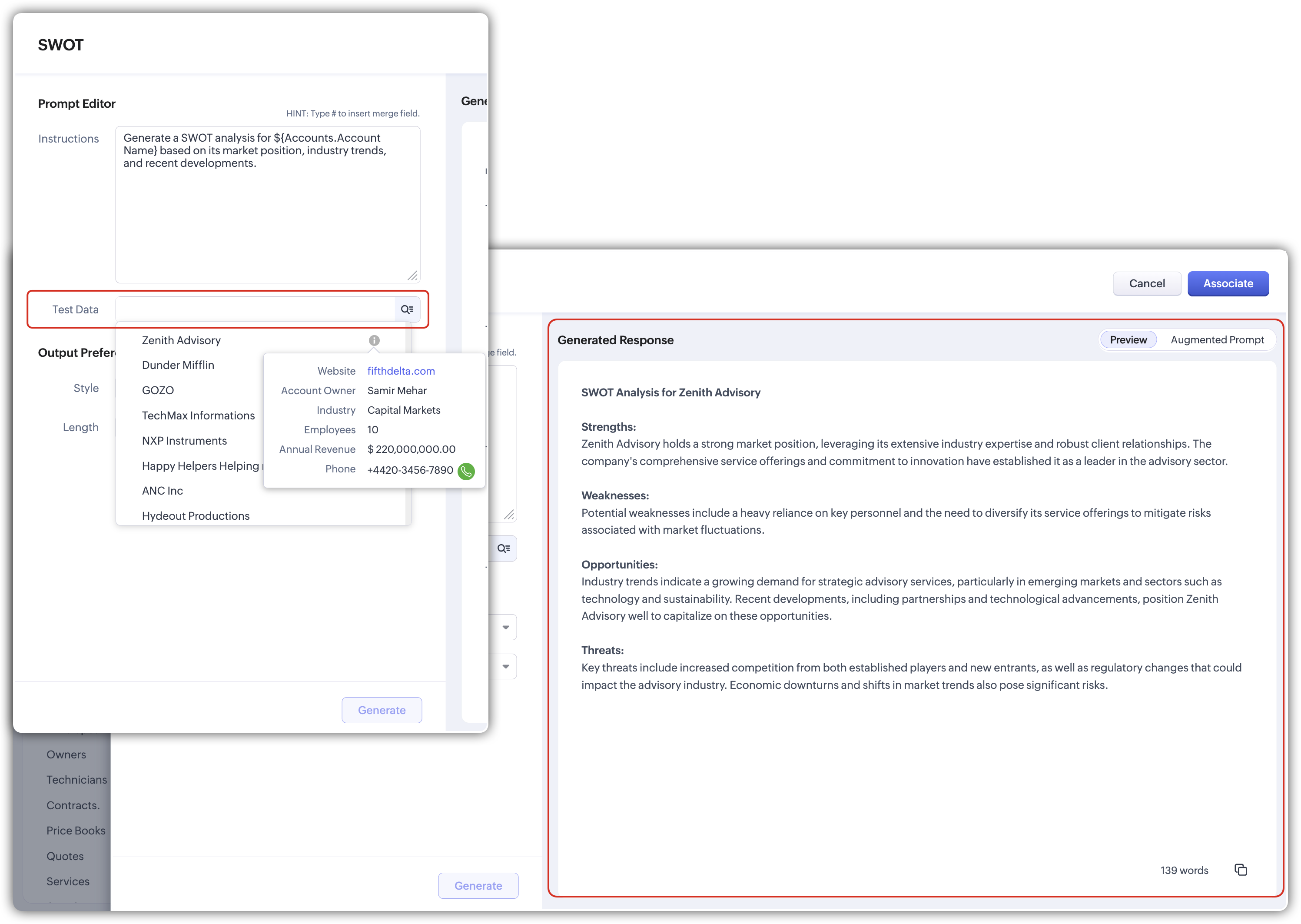
Select a test Lead in the prompt editor and read the preview as if you were the rep. The questions should sound natural aloud, cover all five BANTC areas and stay within the supplied Lead facts. The vendor screenshot below shows where to inspect a generated response; it is not this Lead script.
- Detailed Lead: check that any tailored question reflects a supplied field and still leaves room for the prospect’s answer.
- Sparse Lead: check that the script asks about missing Budget, Authority, Needs, Timeline and Competition facts instead of guessing them.
- Conflicting Lead: put an old target date and a newer, different date in Description; check that the script asks the prospect to clarify timing rather than choosing one.
Log the Lead used, prompt version, response time, unsupported claims, awkward questions and any errors. Revise the prompt if it reads like a questionnaire or treats an unverified fact as settled.
5. Keep a manual call plan
If the automated action is unavailable, the rep can use the same BANTC headings as a checklist and review the Lead’s fields, Notes, Timeline and related activities directly. During the call, the rep records the prospect’s answers in CRM; the generated script is preparation, not a substitute for listening.
Outcome: a Lead-level Call prep button, a versioned BANTC prompt, a list of fields and permitted profiles, and test notes showing whether the generated questions help a real conversation.
Sources and screenshots: Zoho’s Prompt Builder announcement and Zoho’s custom buttons guide. The screenshots show Zoho’s Accounts/SWOT demonstration; the Lead qualification script in this article is a separate proposed test.
Discussion
Comments
Questions, corrections and useful additions are reviewed before appearing here.
Discussion Newest first
No comments yet. Start the discussion.