What?
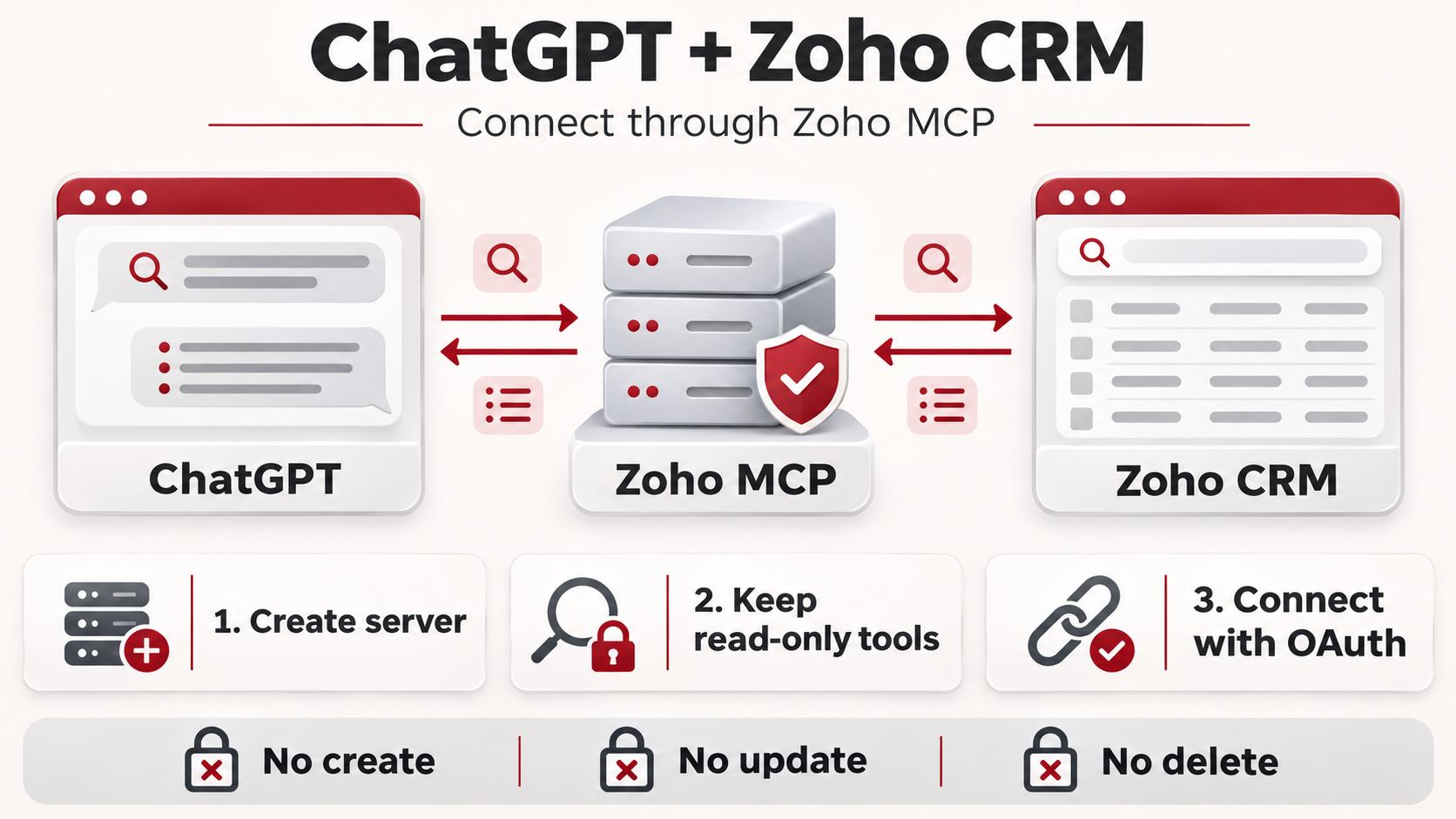
A quick guide to connecting OpenAI ChatGPT to Zoho CRM through Zoho MCP, including the Invalid request url error you may encounter during authorisation. Create the Zoho MCP server first, choose the tools ChatGPT can use, then connect it.
Why?
You start connecting Zoho CRM to ChatGPT, sign in to Zoho, and get this:
{"error_description":"Invalid request url, Request is not as per defined in oauth metadata.","error":"mcp_error"}Invalid request url, Kindly verify the url and try again.The setup step covered here is to create and configure your server in the Zoho MCP console before connecting ChatGPT. Then use the connection URL supplied for that server. The message itself reports an OAuth metadata mismatch; it does not identify one universal cause.
My recommendation is to give ChatGPT read-only tools. It can search records, retrieve details and answer questions without having tools that create, update or delete your CRM data.
How?
1. Create your Zoho MCP server
Sign in to the MCP console for your Zoho account's data centre:
- Europe: https://mcp.zoho.eu
- United States: https://mcp.zoho.com
For another region, use its corresponding Zoho MCP domain. Keep the MCP console and the Zoho account in the same data centre.
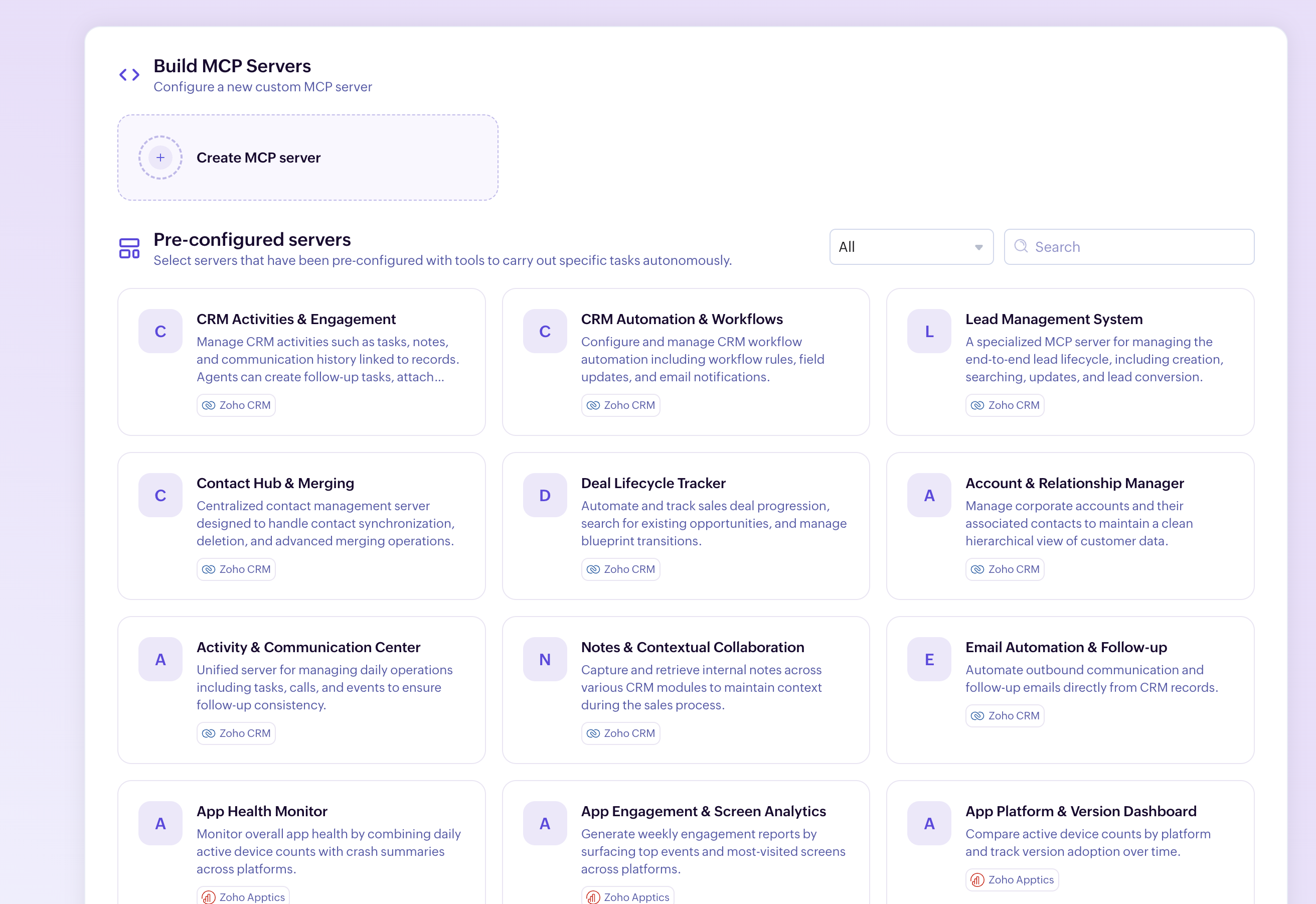
Open the server creation screen using Create MCP Server. Choose CRM Activities & Engagement under Pre-configured servers, review its tools, and click Create. This preset is a starting point: it includes actions you should remove for a read-only connection. See Zoho's server setup guide.
2. Remove tools that can change data
Open the server's Tools section. Remove any upsert or updateRecords tools from its tool list, together with any tools that create, insert, delete, send messages or otherwise change data. An upsert can either create a record or update an existing one.
Check each tool's description before keeping it. Choosing a preset does not make the server read-only.
3. Add the CRM tools you actually need
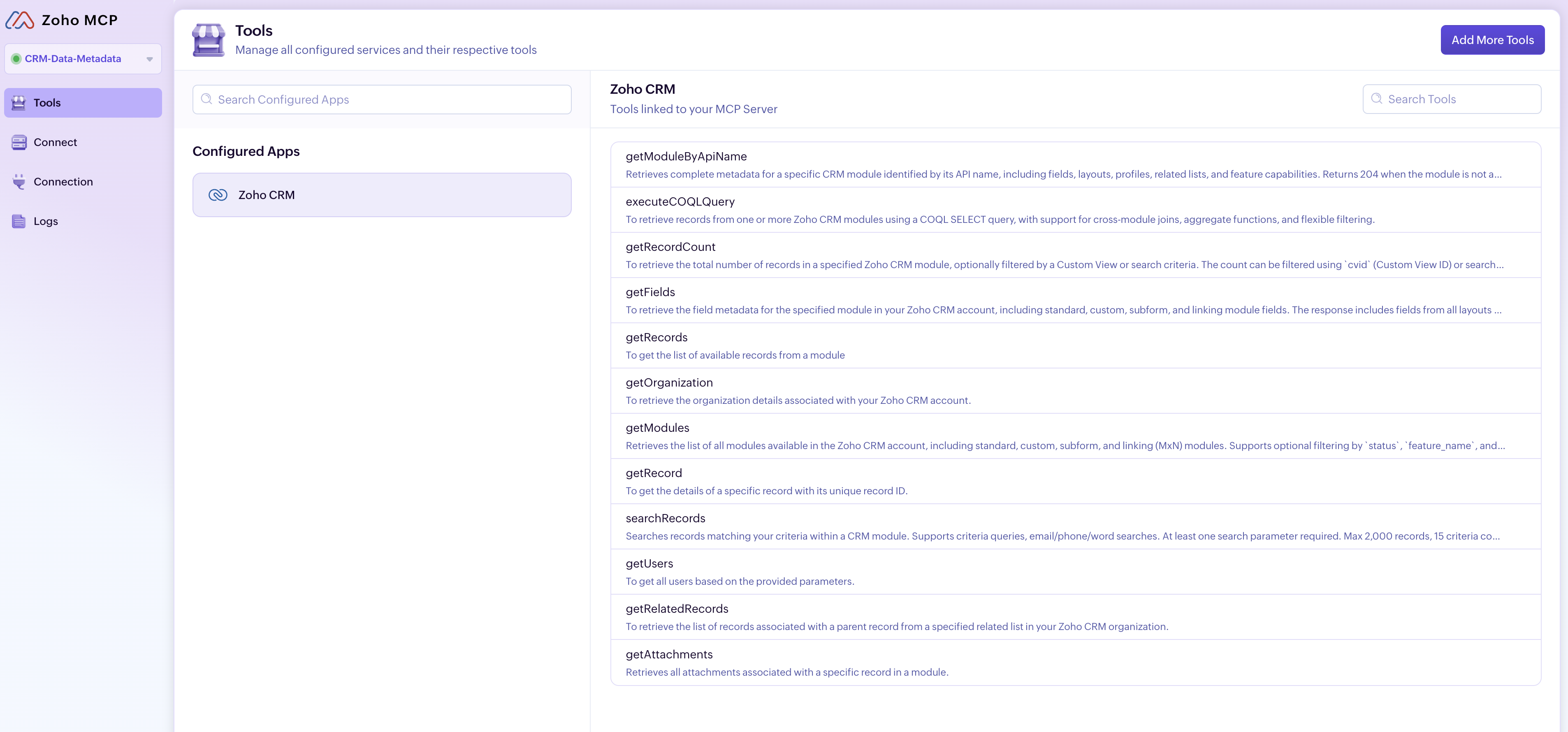
Click Add More Tools, select Zoho CRM, and tick the required read tools. For example, add getAttachments if ChatGPT needs to list a record's attachments, then confirm with Add Now.
The screenshot below shows this selection of read tools:
| Purpose | Tools |
|---|---|
| Find and read records | getRecords, getRecord, searchRecords, executeCOQLQuery |
| Inspect CRM structure | getModules, getModuleByApiName, getFields |
| Count records | getRecordCount |
| Read related information | getRelatedRecords, getAttachments |
| Read organisation and user details | getOrganization, getUsers |
Keep only what you need. These are individual tools; the OAuth permissions and the connected Zoho user's access also determine what they can retrieve.
4. Connect the server to ChatGPT
- In Zoho MCP, open Connect and copy this server's MCP URL.
- In ChatGPT on the web, open Plugins → + → Add custom MCP server.
- Enter a name such as Zoho CRM — Read Only, paste the MCP URL, and choose OAuth authentication.
- Review the connection warning, tick the acknowledgement, and select Create as a plugin. Complete Zoho's authorisation screens.
- Review the discovered tools, install the plugin, then select it with @ in a new conversation.
Failing the above, get the URL to the service (it is in its own section at the top of the page) and open a standard chat and ask it the following:
Can you help me configure a read-only MCP connection to [SERVICE NAME] using this server URL: [YOUR MCP SERVER URL]?

Use OAuth authentication. Only enable tools that retrieve data; exclude tools that create, update or delete records.  Thanks!
Access depends on your ChatGPT account and workspace permissions. Older interfaces use Settings → Apps → Create App; some require Advanced settings → Developer mode. Follow the current OpenAI connection instructions for your interface.
Copy the URL from Connect. The MCP console homepage and the failing OAuth URL in your browser's address bar are not the server endpoint.
5. Test a read request
Start with a small query:
Using my Zoho CRM connection, list five recently modified Leads.
Return their record IDs, names and modification times.
Do not create, update or delete anything.
Compare the results with CRM and check the tools used. The read-only restriction comes from your configured tools and permissions, not just the wording of the prompt.
If the OAuth error persists, check the data centre, copy a fresh URL from Connect, and reconnect. If those are correct, ask Zoho support to investigate the OAuth metadata error.
Add other Zoho apps
Return to Add More Tools to add Zoho Projects, Books, Mail, Billing, Inventory, Recruit, Bookings, Analytics, Creator, Backstage, Campaigns and other supported Zoho apps. Authorise each service as required and keep the same read-only approach when selecting its tools.
Discussion
Comments
Questions, corrections and useful additions are reviewed before appearing here.
Discussion Newest first
No comments yet. Start the discussion.