What?
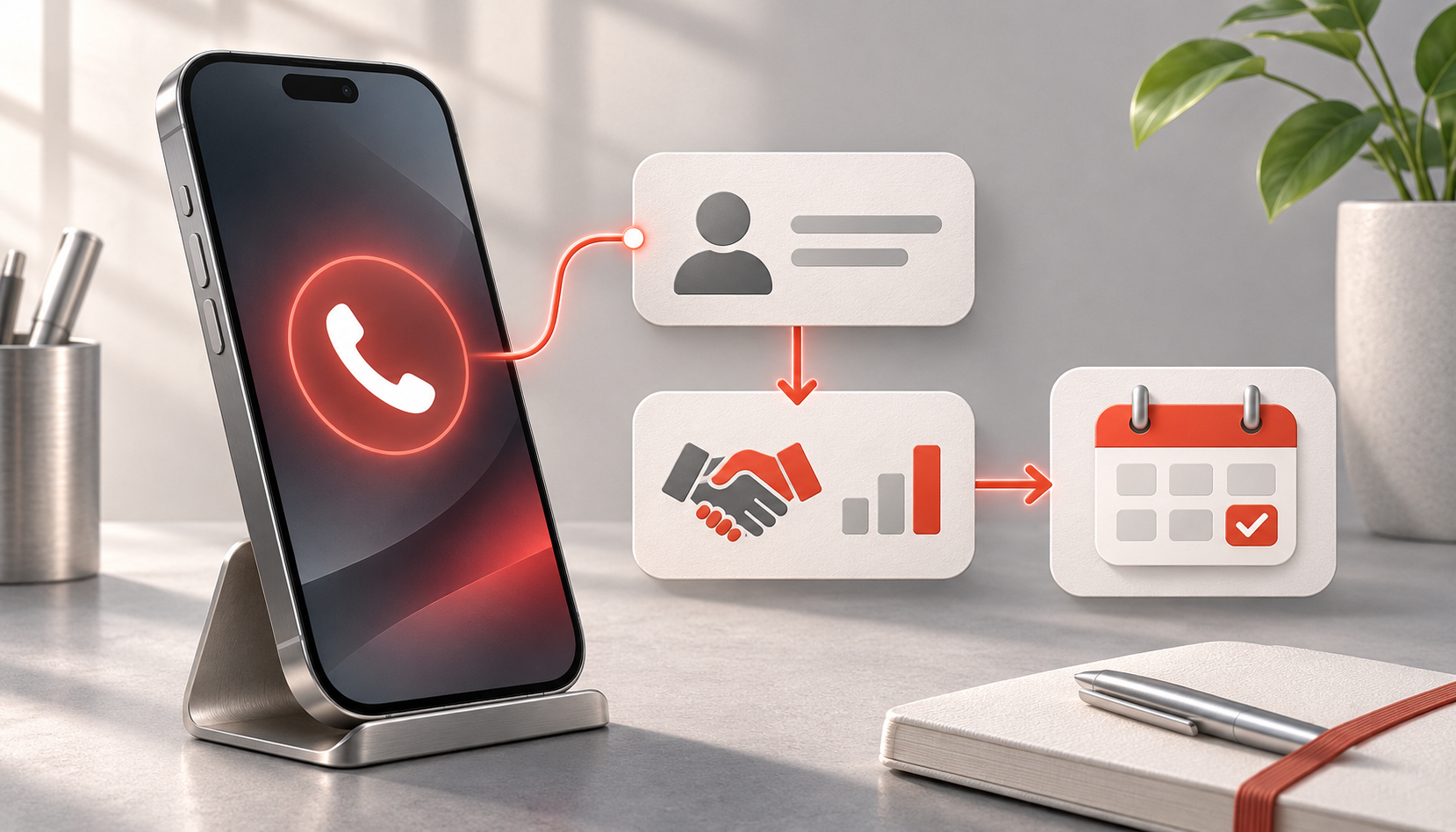
Set up Built-In Telephony in the Zoho CRM iPhone app so you can call a customer, update their deal and arrange the next action without leaving CRM. The administrator configures the number and calling access in the web application; the salesperson then selects the calling preference on their iPhone.
Why?
A salesperson has sent a quotation and needs to chase a decision between appointments. The useful workflow is simple: open the contact, make the call, record the agreed deal changes and schedule the promised follow-up. That avoids a separate phone call followed by a forgotten CRM update.
Start with one salesperson and an internal test contact with an open deal. Agree which business number the recipient should see and where a return call should go before involving customers.
How?
1. Enable the salesperson in the web application
As a CRM administrator, open Setup > Channels > Telephony. Set up Built-In Telephony, or open its details if already installed.
- Purchase a number and calling credits. For iOS use, Zoho specifies the Mobile number type. Availability depends on the country selected.
- Open Telephony Users > Add User and choose the salesperson.
- Enable Allow to make outgoing calls, select the permitted Outgoing caller IDs and save.
Mobile means the type of number purchased through telephony. It does not mean entering the salesperson's existing SIM number. See Zoho's administrator setup guide.
2. Give return calls somewhere to go
For callbacks to the purchased number, open Call Flows > Create Call Flow, name the flow, associate the number and continue to the builder. For this pilot, route calls to the test salesperson using Transfer to a user, configure the state and connect the route, then Publish.
A number without an associated call flow rejects incoming calls. Publishing the flow is therefore part of making the business number usable for callbacks. The call-flow guide covers additional routing options.
3. Select the calling option on the iPhone
In the Zoho CRM iOS app, open More > Settings. Under Calls, select Call Preferences and choose Built-In Telephony. This preference chooses how the app calls; it does not grant telephony access.
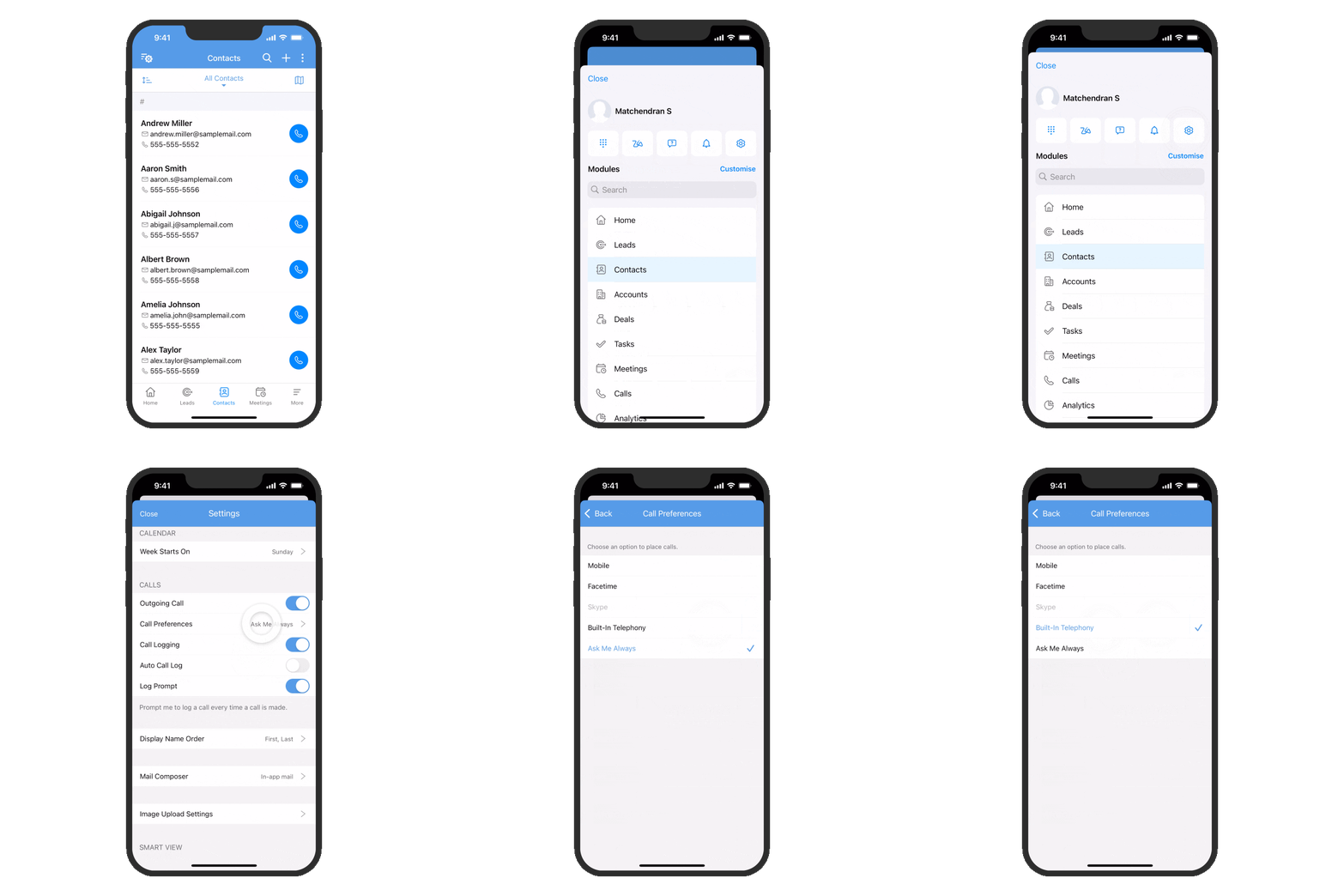
If your organisation uses external telephony, configure a provider supported by the iOS app instead. The remaining steps here use Built-In Telephony.
4. Call the contact about their quotation
Open the internal test contact and tap its linked number or call icon. List-view calling is available in Leads, Contacts and Accounts; other modules provide calling inside the record. If prompted, choose Built-In Telephony, using Just Once for the test or Always for your continuing choice.
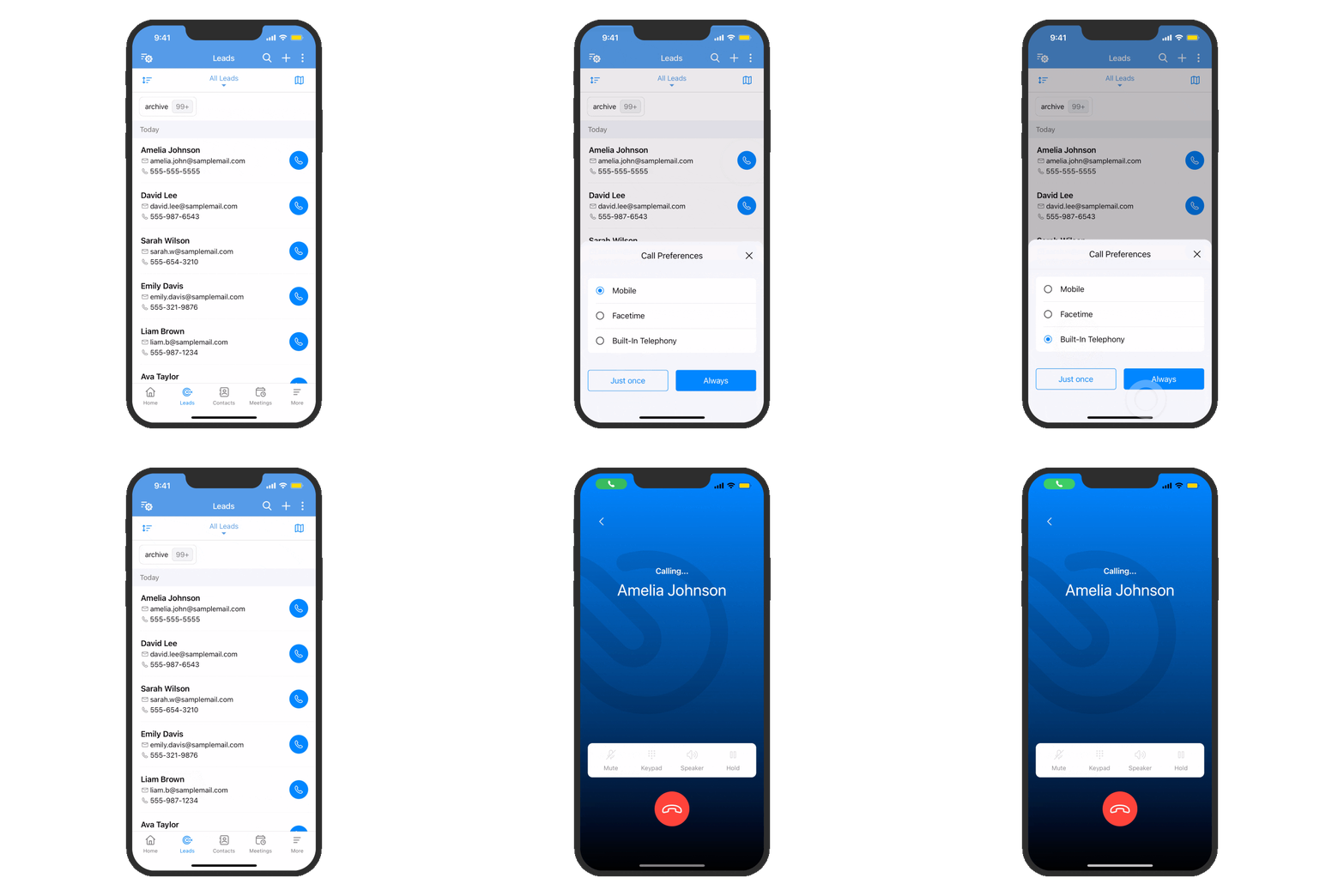
Ask your colleague to confirm the caller ID they receive. Use this check to catch the wrong outgoing number before a customer sees it.
5. Update the deal while the conversation is fresh
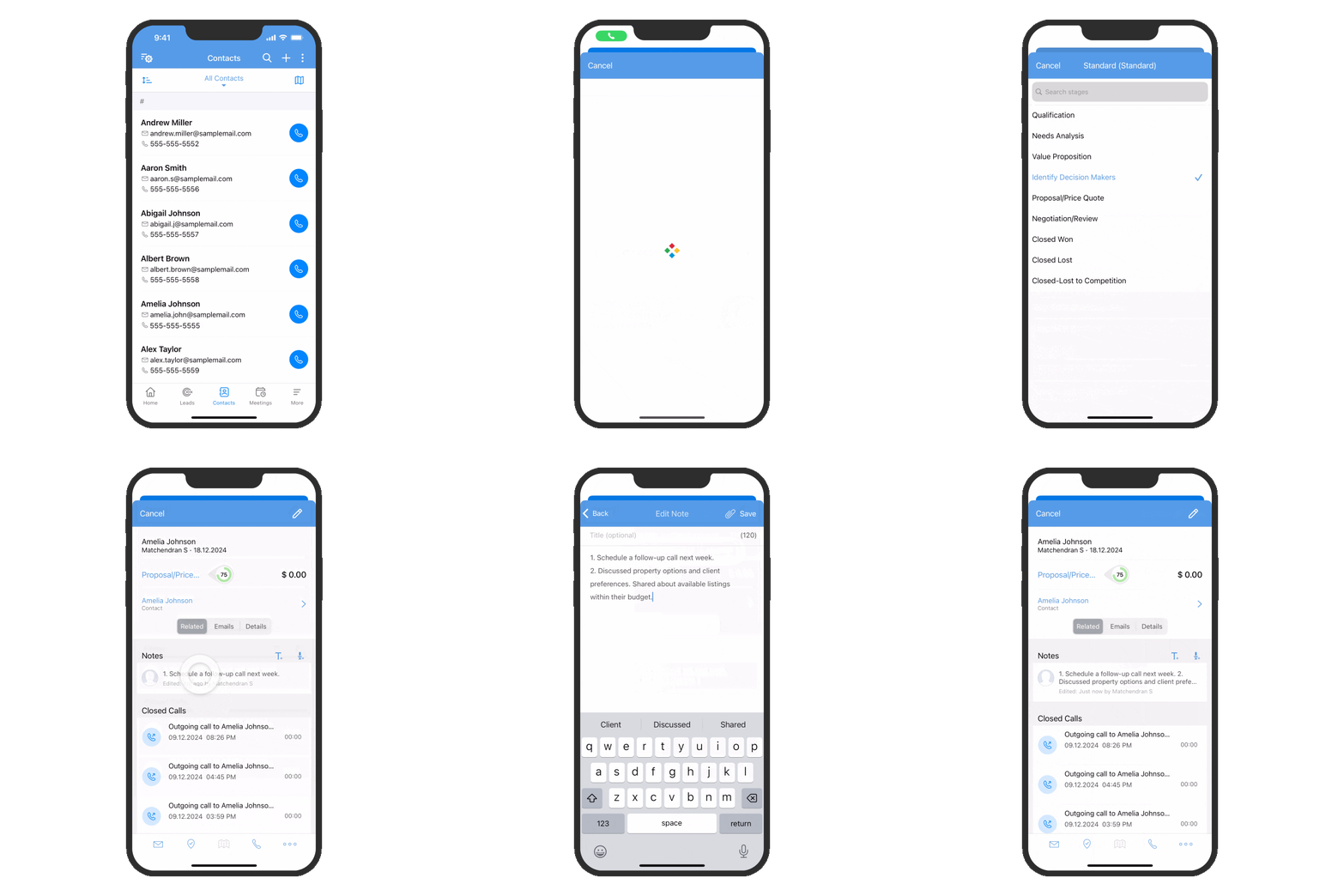
On the call screen, tap the open deal card and update the relevant details. In our quotation example, amend the expected closing date if the customer gives a new decision date. Change the stage only when the conversation meets your business's criteria for that stage.
6. Schedule the next action before moving on
When the call ends, select an activity from the follow-up screen. For example, schedule a call for the agreed decision date. If a revised quotation must be sent first, add a separate task due today. Give each activity a clear purpose so the next person can understand what was promised.
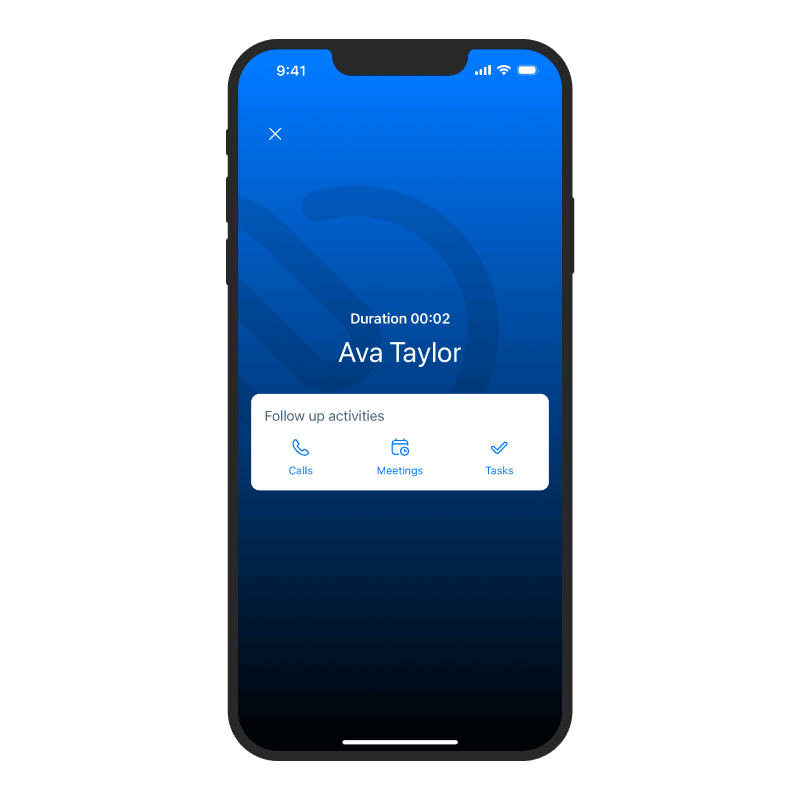
Reopen the record afterwards. Confirm the call was logged, the deal changes saved and the follow-up has the right date. Also test a return call to the business number.
7. Use the dial pad when you only have a number
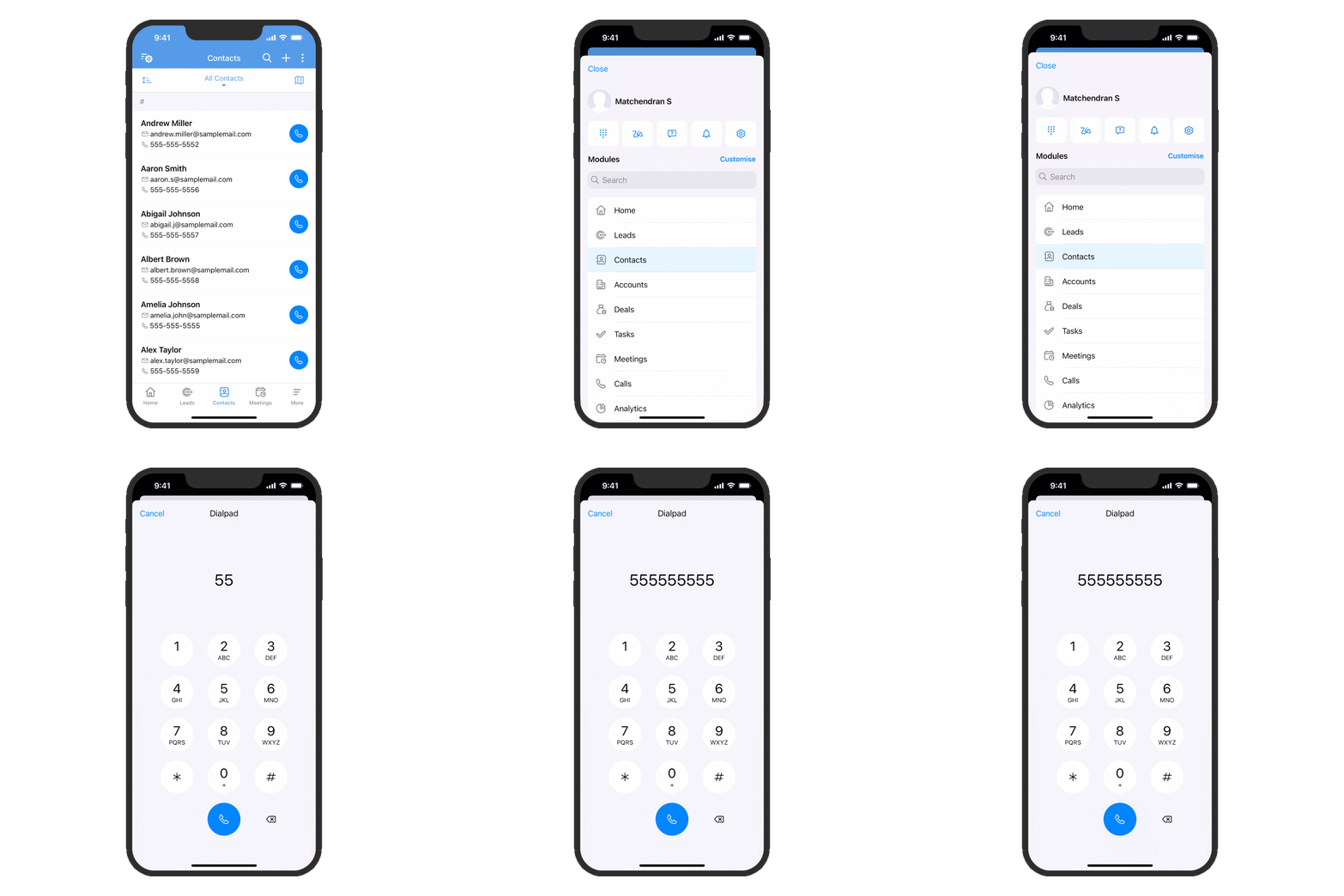
For a number supplied in an email or at an appointment, open More, select the Dial pad in the quick access menu, enter the number and call. A matching CRM number can display its record details; an unknown number can still be called. Do not assume that calling an unknown number creates a contact.
If the test fails
- Calling option unavailable: check the purchased number type and the user's web telephony setup.
- Cannot call out: check calling credits, outbound access and the assigned caller ID.
- Callbacks fail: check that the number is associated with a published call flow.
- Wrong customer details: compare the number dialled with the intended CRM record before updating anything.
Discussion
Comments
Questions, corrections and useful additions are reviewed before appearing here.
Discussion Newest first
No comments yet. Start the discussion.