What?
Connect Zoho CRM to MyGeotab with two Deluge functions: one lists vehicles through the API; the other receives rule events by webhook. The receiver logs the vehicle, rule and event time, plus the driver and zone when available.
Why?
A completed job sheet tells me when someone updated CRM. The tracker tells me when the van left the site. I wanted to check that data before using it on job sheets.
Ignition off only means the engine stopped. Combine it with a customer zone to identify a possible site visit.
How?
You need administrator access to MyGeotab and Zoho CRM. Use a test CRM organisation or sandbox with function REST endpoints available. The sample data is fictional.
The vehicle lookup uses a MyGeotab service account. The webhook uses the private REST URL generated by CRM. No named Zoho Connection or MyGeotab Add-In is needed.
1. Create the MyGeotab service account
- Ask the fleet administrator for the database short name. For
https://my.geotab.com/example_fleet/, this would beexample_fleet. - Open Users & Drivers from the main menu or app library. In Classic, use People > Users & Drivers. Click + User or Add.
- Enter a dedicated integration username and the required name fields. Set Authentication type to Service Account, set its password and choose View only security clearance.
- Give it data access to the group containing your test vehicles and save. Note one vehicle you expect to see. Test the credentials through the API; service accounts cannot sign in to the MyGeotab interface.
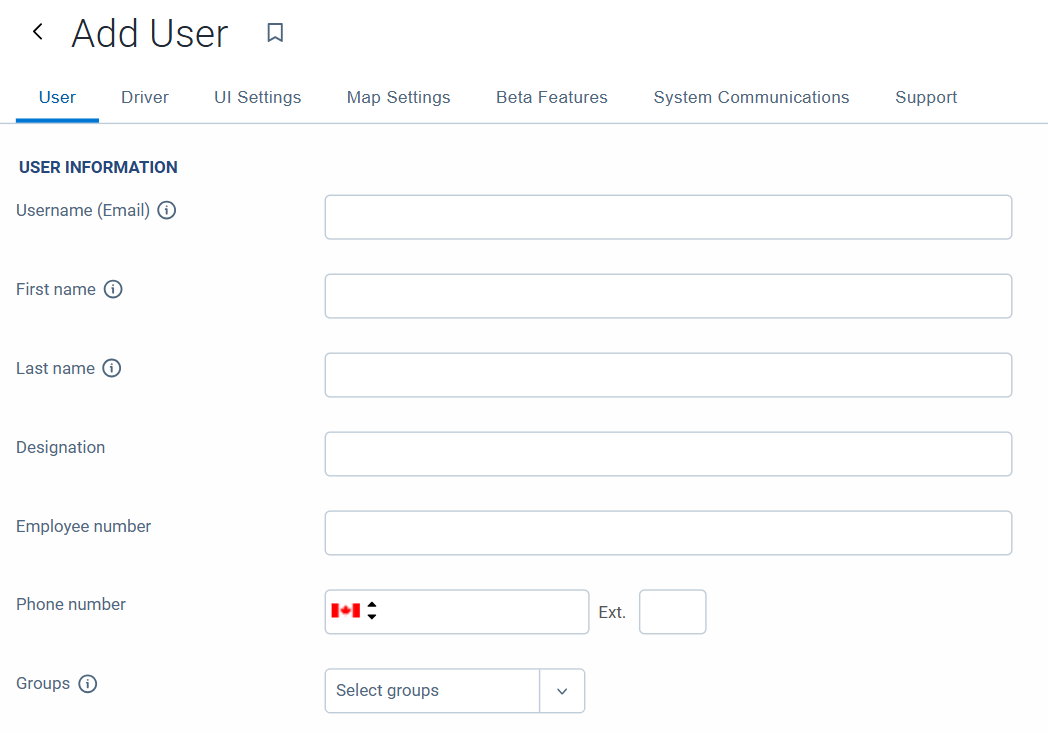
Service account settings · Vehicle group access
2. List vehicles from Zoho CRM
Open Setup > Developer Hub > Variables > Create New Variable. Create three text variables with these API names:
| Variable API name | Value |
|---|---|
Geotab_Test_Database | MyGeotab database short name |
Geotab_Test_User | Service account username |
Geotab_Test_Password | Temporary service account password |
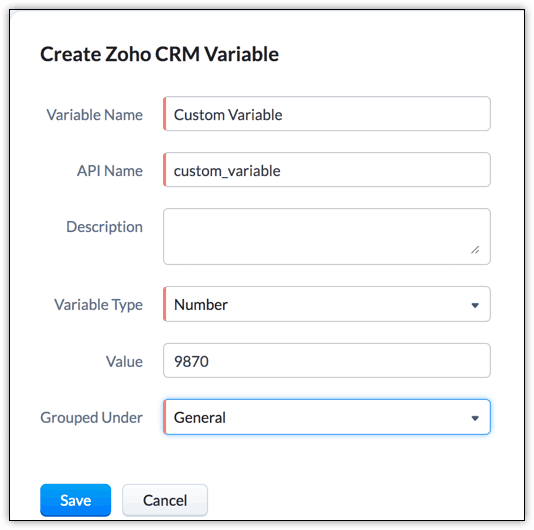
For this test, use a temporary view-only password in an admin-only organisation and clear its value afterwards. For a permanent lookup, retrieve it from your organisation’s secret store.
Open Setup > Developer Hub > Functions > Create New Function. Choose Standalone and Deluge, and name it fn_Geotab_ListVehicles. It takes no arguments and returns a string.
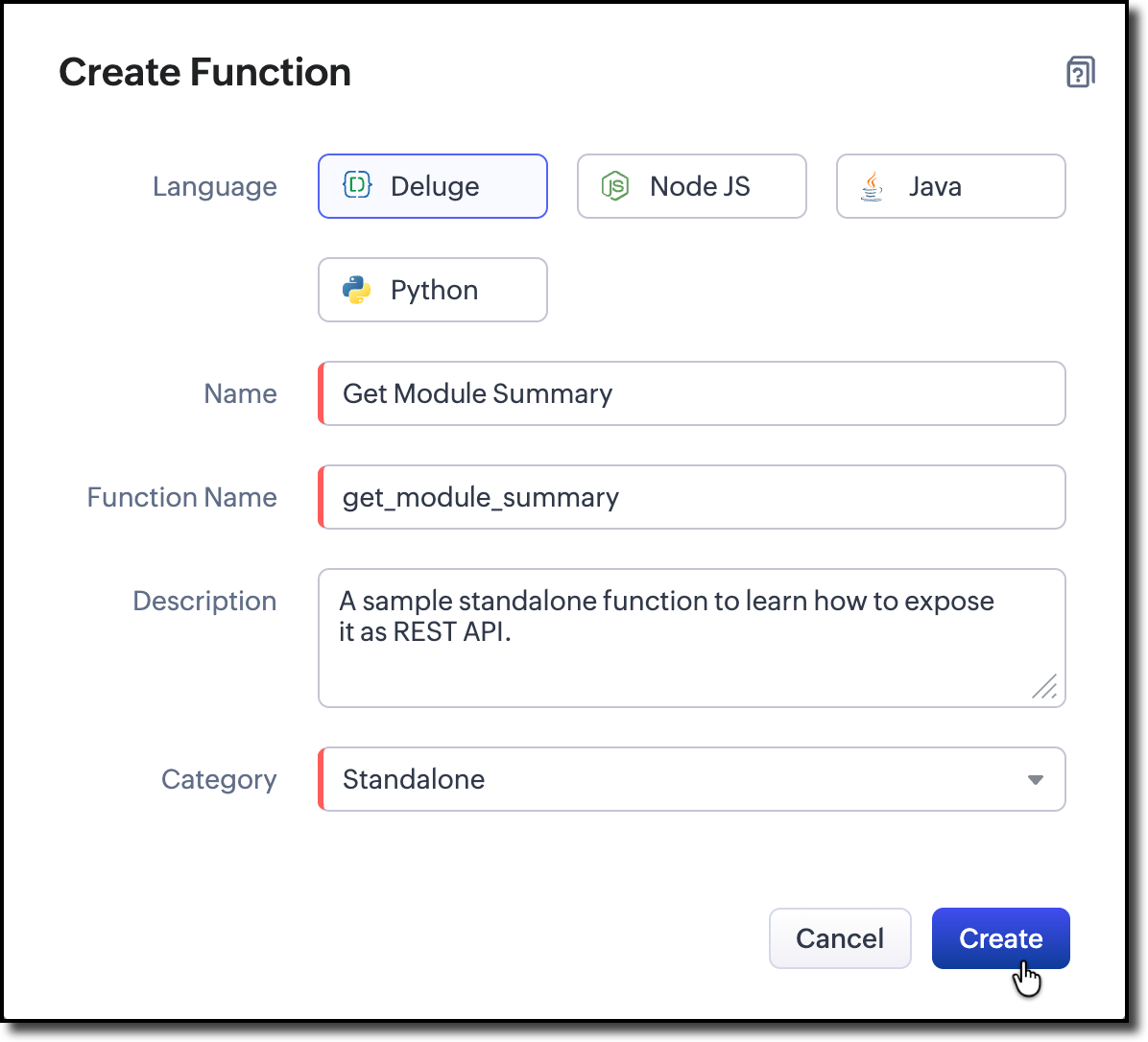
If the editor supplies the function declaration, paste only the contents between its braces.
string standalone.fn_Geotab_ListVehicles()
{
    /* Function: fn_Geotab_ListVehicles
       Purpose: Read up to 10 devices visible to a MyGeotab service account.
       Trigger: Manual run in CRM. Inputs: Three test CRM variables.
       Connections: None. Output: Vehicle rows in the console and a summary.
       Changelog: Initial read-only example. */
    v_Stage = "Configuration";
    v_Result = "Set the three Geotab test variables.";
    try
    {
        v_Database = zoho.crm.getOrgVariable("Geotab_Test_Database");
        v_Username = zoho.crm.getOrgVariable("Geotab_Test_User");
        v_Password = zoho.crm.getOrgVariable("Geotab_Test_Password");
        if(!isBlank(v_Database) && !isBlank(v_Username) && !isBlank(v_Password))
        {
            v_Stage = "Authenticate";
            v_Server = "my.geotab.com";
            m_Headers = {"Content-Type":"application/json","Accept":"application/json"};
            m_Login = {"database":v_Database.trim(),"userName":v_Username.trim(),"password":v_Password};
            m_Request = {"method":"Authenticate","params":m_Login};
            r_Api = invokeurl
            [
                url :"https://" + v_Server + "/apiv1"
                type :POST
                parameters:m_Request.toString()
                headers:m_Headers
            ];
            if(isNull(r_Api.get("error")))
            {
                m_LoginResult = r_Api.get("result");
                m_Credentials = m_LoginResult.get("credentials");
                v_Path = ifnull(m_LoginResult.get("path"),"").trim().toLowerCase();
                if(v_Path != "thisserver")
                {
                    v_Server = v_Path.replaceFirst("^https://","").replaceFirst("/$","");
                }
                v_Result = "Authenticate returned an unexpected server or an empty session.";
                if(v_Server.matches("([a-z0-9-]+[.])+geotab[.]com") && !isBlank(m_Credentials.get("sessionId")))
                {
                    v_Stage = "Get Device";
                    v_Now = zoho.currenttime.toString("yyyy-MM-dd'T'HH:mm:ss'Z'","UTC");
                    m_Params = {"typeName":"Device","search":{"fromDate":v_Now},"resultsLimit":10,"credentials":m_Credentials};
                    m_Request = {"method":"Get","params":m_Params};
                    r_Api = invokeurl
                    [
                        url :"https://" + v_Server + "/apiv1"
                        type :POST
                        parameters:m_Request.toString()
                        headers:m_Headers
                    ];
                    if(isNull(r_Api.get("error")) && !isNull(r_Api.get("result")))
                    {
                        l_Devices = r_Api.get("result");
                        info "Vehicle | Registration | Device ID";
                        for each m_Device in l_Devices
                        {
                            info ifnull(m_Device.get("name"),"") + " | " + ifnull(m_Device.get("licensePlate"),"") + " | " + ifnull(m_Device.get("id"),"");
                        }
                        v_Result = "Devices returned: " + l_Devices.size() + " (test limit 10).";
                    }
                    else
                    {
                        v_Result = "Get Device returned no device list.";
                    }
                }
            }
            m_Error = r_Api.get("error");
            if(!isNull(m_Error))
            {
                m_ErrorData = ifnull(m_Error.get("data"),Map());
                v_Result = v_Stage + " failed: " + ifnull(m_ErrorData.get("type"),"Geotab API error") + " (code " + ifnull(m_Error.get("code"),"unknown") + ").";
            }
        }
    }
    catch(e)
    {
        v_Result = v_Stage + " failed. Check the configuration and expected API response.";
    }
    return v_Result;
}
Click Save and Run. A sample output row is Demo van | TEST REG | demo-device-01. A blank registration is allowed. If the count is zero, check the account’s vehicle groups and the active-date filter. The example returns up to ten devices.
Authenticate returns session credentials and a server path. ThisServer means keep using the current host. The function then calls Get for Device. Keep the login response out of the log; it contains the session ID. A recurring reader should reuse a valid session.
CRM variables · MyGeotab authentication · Device search fields
3. Create the CRM webhook receiver
Create another Standalone Deluge function named fn_Geotab_ReceiveEvent. Under Edit Arguments, add a String named exactly crmAPIRequest. This reserved argument receives the HTTP request; no module or field mapping is needed.
Form values may arrive in body while params is empty. Split the body into fields before decoding values, so Stores+%26+Repairs remains one value.
string standalone.fn_Geotab_ReceiveEvent(String crmAPIRequest)
{
    /* Function: fn_Geotab_ReceiveEvent
       Purpose: Preview a Geotab notification without writing to CRM records.
       Trigger: HTTP POST. Input: Zoho's reserved crmAPIRequest argument.
       Connections: None. Output: Parsed event in the log and return string.
       Changelog: Initial webhook example. */
    m_Result = Map();
    m_Result.put("ok",false);
    m_Result.put("received_utc",zoho.currenttime.toString("yyyy-MM-dd'T'HH:mm:ss'Z'","UTC"));
    try
    {
        m_Request = crmAPIRequest.toMap();
        m_Params = ifnull(m_Request.get("params"),Map());
        m_Body = Map();
        v_Body = ifnull(m_Request.get("body"),"").toString().trim();
        l_Required = {"device_id","rule","event_date","event_time","timezone"};
        l_Fields = {"device_id","rule","event_date","event_time","timezone","vehicle","driver_name","zone_id","zone_name","latitude","longitude"};
        if(v_Body.startsWith("{"))
        {
            m_Body = v_Body.toMap();
        }
        else if(v_Body.contains("="))
        {
            for each v_Pair in v_Body.toList("&")
            {
                if(v_Pair.contains("="))
                {
                    v_Key = v_Pair.getPrefix("=");
                    if(l_Fields.contains(v_Key))
                    {
                        v_Raw = ifnull(v_Pair.getSuffix("="),"");
                        m_Body.put(v_Key,zoho.encryption.urlDecode(v_Raw.replaceAll("+"," ",true)));
                    }
                }
            }
        }
        m_Event = Map();
        l_Missing = List();
        for each v_Field in l_Fields
        {
            v_Value = ifnull(m_Body.get(v_Field),ifnull(m_Params.get(v_Field),"")).toString().trim();
            if(v_Value != "" && !v_Value.startsWith("{"))
            {
                m_Event.put(v_Field,v_Value);
            }
            else if(l_Required.contains(v_Field))
            {
                l_Missing.add(v_Field);
            }
        }
        m_Result.put("event",m_Event);
        m_Result.put("ok",l_Missing.isEmpty());
        if(!l_Missing.isEmpty())
        {
            m_Result.put("missing_fields",l_Missing);
        }
    }
    catch(e)
    {
        m_Result.put("message","Could not read the webhook request.");
    }
    info m_Result;
    return m_Result.toString();
}
Save the function. Open Overview > REST API, enable API Key and copy the complete generated URL. Some layouts put REST API in the function’s actions menu. Keep its data-centre domain, function API name and authentication query string intact.
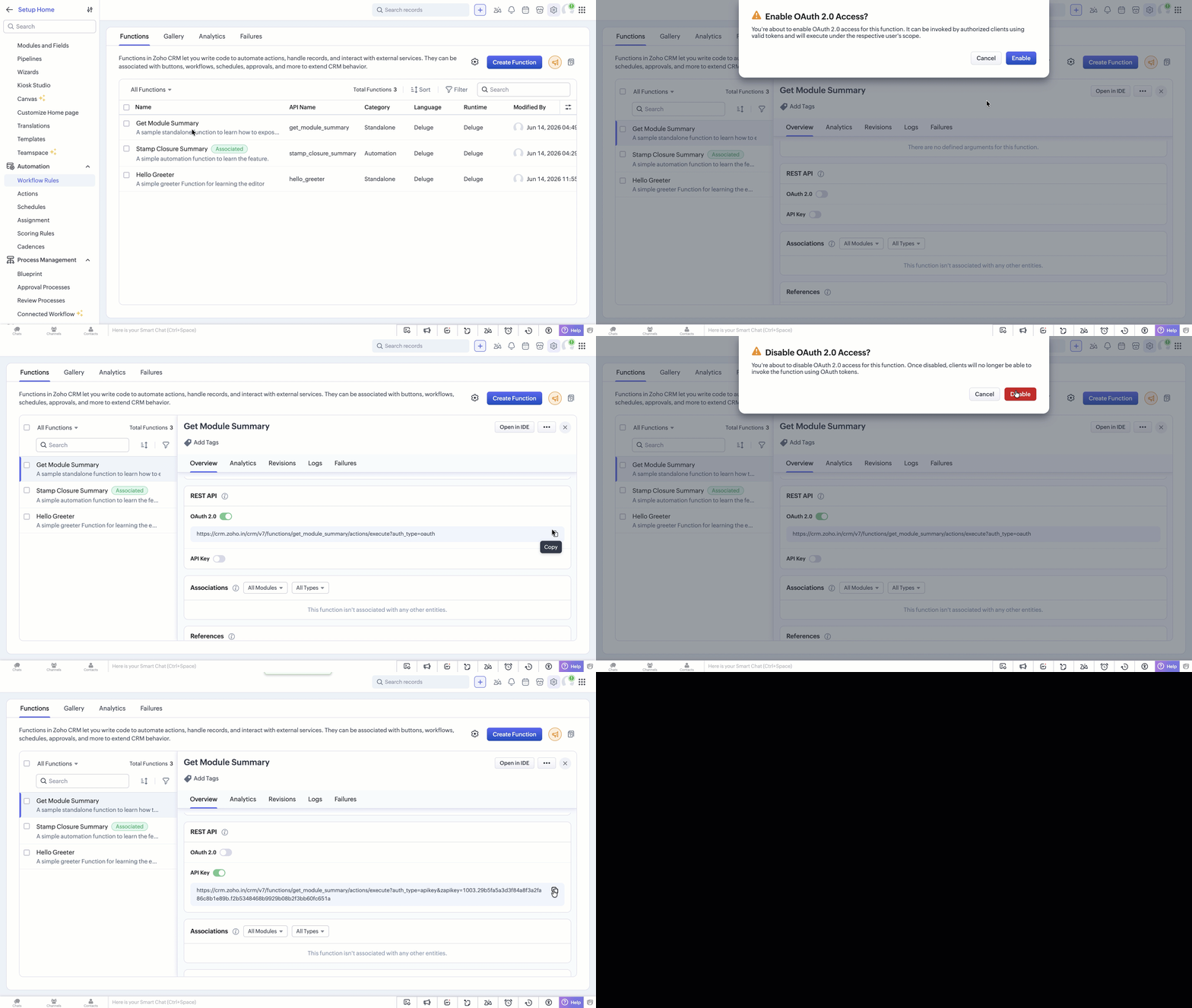
Keep this URL private; anyone who has it can invoke the function. Only expose the receiver.
Enable a function’s REST API · Incoming request fields
4. Test the CRM endpoint
The editor’s Run button has no incoming HTTP request. Send a POST instead. In Bash, run this and paste your private function URL at the prompt:
read -r -s -p 'Paste the private CRM function URL: ' webhook_url
printf '\n'
curl --silent --show-error --request POST "$webhook_url" \
  --data-urlencode 'device_id=demo-device-01' \
  --data-urlencode 'rule=Demo Site Left' \
  --data-urlencode 'event_date=Apr, 15, 2026' \
  --data-urlencode 'event_time=9:42:18 AM' \
  --data-urlencode 'timezone=UTC' \
  --data-urlencode 'driver_name=driver@example.invalid' \
  --data-urlencode 'zone_id=demo-zone-01' \
  --data-urlencode 'zone_name=Demo Stores & Repairs'
unset webhook_url
Open the receiver’s Logs and select the execution. Check for ok: true, the rule and the complete zone name Demo Stores & Repairs. A successful HTTP request can still report missing event fields.
Zoho may wrap the returned string in its function-execution response. The inner result should look like this:
{
  "ok": true,
  "received_utc": "2026-04-16T12:00:00Z",
  "event": {
    "device_id": "demo-device-01",
    "rule": "Demo Site Left",
    "event_date": "Apr, 15, 2026",
    "event_time": "9:42:18 AM",
    "timezone": "UTC",
    "driver_name": "driver@example.invalid",
    "zone_id": "demo-zone-01",
    "zone_name": "Demo Stores & Repairs"
  }
}
received_utc is when CRM handled the request. event_date, event_time and timezone describe the tracker event; the sample uses an earlier date to show the difference.
5. Create the Geotab web request template
- In MyGeotab, open Configure > Rules. In Classic, use Groups & Rules > Rules.
- Choose Notification templates > Add web template. Name it CRM vehicle event preview.
- Paste the complete private Zoho URL into URL and set HTTP request type to POST.
- Enter the following in POST data as one line. Insert the values from Available Tokens in your interface; the example uses the English labels.

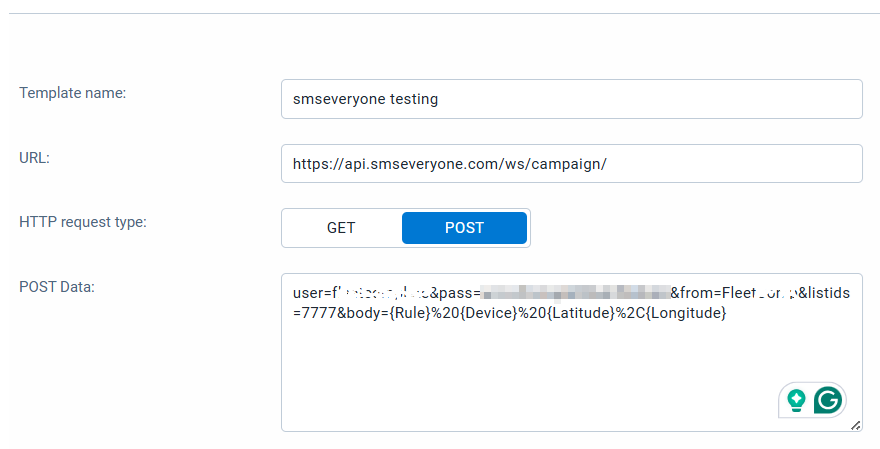
device_id={Device ID}&rule={Rule}&event_date={Date}&event_time={Time}&timezone={Timezone}&vehicle={Device}&driver_name={Driver Name}&zone_id={Zone ID}&zone_name={Zone}&latitude={Latitude}&longitude={Longitude}Save the template. Keep Zoho’s authentication parameters in the URL; put event fields in POST data.
Use rule={Rule} so each notification carries the rule that fired. Fixed text such as rule=Ignition Off would give every event the same name. Use {Device ID} as the vehicle identifier; {Device} can include its name and serial number. Driver and zone values may be blank.
Geotab web templates and notifications · Token examples
6. Attach the template to a rule
Start with a rule that already generates events, such as Idling. Any vehicle in the rule’s scope can trigger it.
- Open Rules. For a built-in rule, click its envelope. For a custom rule, open it and choose Notifications.
- Choose More > Web request. Select CRM vehicle event preview, click Add, then Save. Reopen the rule to check it is attached.
- Wait for a new matching event in MyGeotab, then find the same rule, vehicle and event time in the CRM receiver’s logs.

For an ignition test, choose + Rule, name it Demo Ignition Off and select your vehicle group under Publish to groups. Under Conditions, add Device Ignition with the false/off condition. Attach the same web request under Notifications and save.
Confirm that idling and ignition events arrive with different rule values. If you use a debug email, send only the parsed fields to your test mailbox; driver names and locations can identify people.
Rule setup and groups · Web request notifications
7. Add travelling and site rules
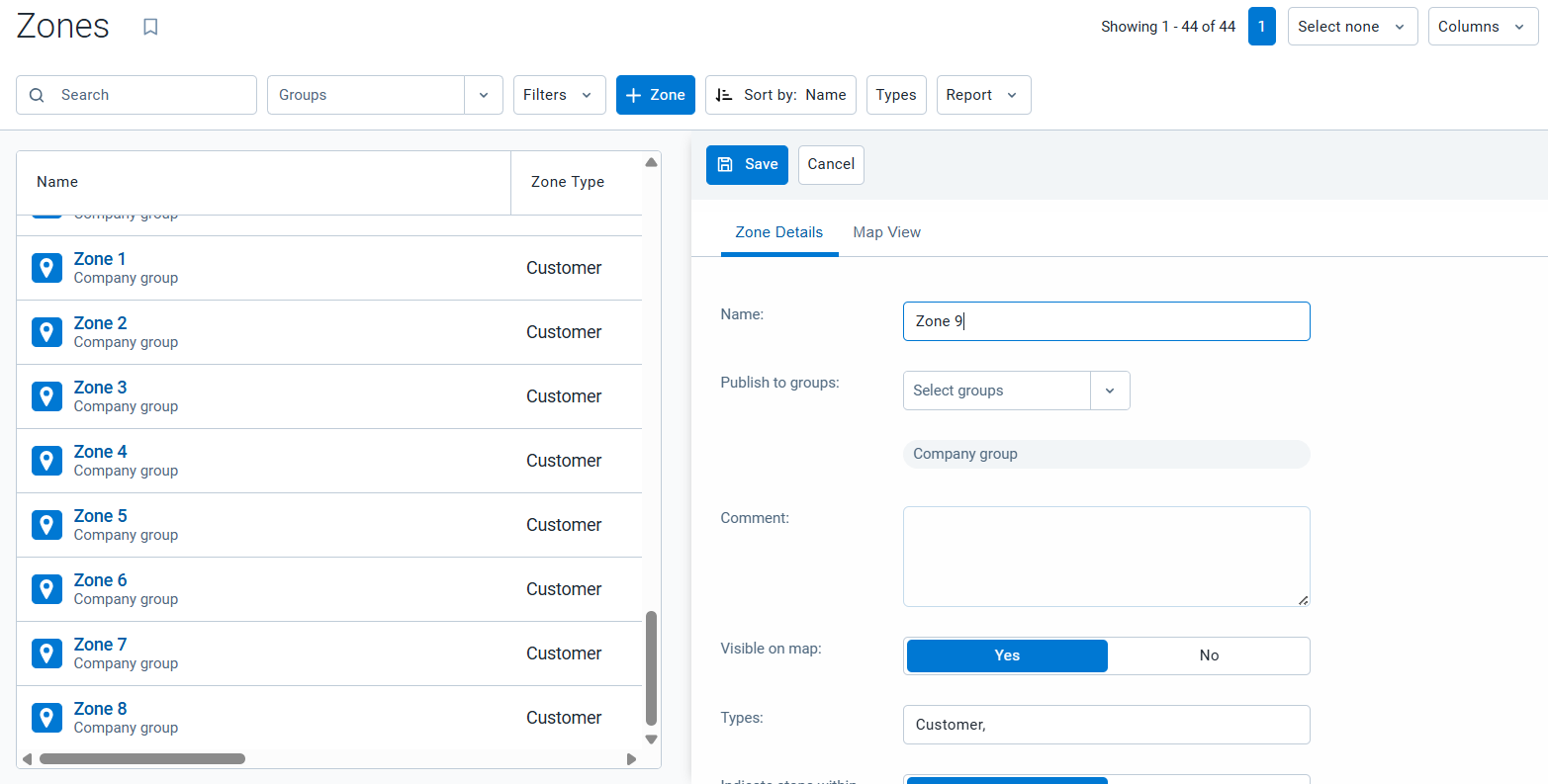
Open Configure > Zones (Classic: Productivity > Zones > Zones). Check each site’s boundary and type. To add one, choose + Zone, draw its boundary, name it and assign a type such as Customer site. Keep each site’s own name and ID.
| Rule | Condition | What it tells CRM |
|---|---|---|
| Demo Travelling | Speed above your movement threshold, with a duration if needed | The vehicle met the movement condition. |
| Demo Idling | Your fleet’s existing idling rule | The idle threshold was reached; check its duration when comparing times. |
| Demo Site Entered | Entering a Customer site zone | Possible arrival; passing vehicles can also cross a boundary. |
| Demo Parked On Site | Inside a Customer site zone AND ignition false | The van stopped its engine inside the zone. |
| Demo Site Left | Exiting a Customer site zone | Possible departure. Retain the previous entry if the exit has no zone ID. |
| Demo Home Entered / Demo Home Left | Separate entering and exiting rules for a Home zone type | A home-zone crossing. Match the driver to the particular zone to identify their own home. |
For each rule, select the vehicle group, configure the conditions and attach the existing web request. The group selects vehicles; the zone type selects locations.
If nothing arrives
| Problem | Check |
|---|---|
| The editor reports missing fields | Use the POST in step 4; Run does not supply an HTTP request. |
| No CRM execution after the POST | Copy the REST URL again from the intended CRM environment. Check API Key is enabled, the query string is complete and Zoho’s response has no authentication or function error. |
| The POST works, but no vehicle event arrives | Find a new Geotab event under that rule after the notification was saved. Check groups, conditions and duration, then verify the attached template uses the URL you tested. |
The function runs, but params is empty | Check the parsed event; form values may be in body. Avoid logging the complete request, which includes other user and header data. |
| Rule names repeat or values still contain braces | Reinsert the dynamic token from Available Tokens, save and wait for a new event. |
| The zone or driver is blank | Compare the vehicle and event time in Geotab. Check driver assignment and zone coverage; leave the event unassigned if the match is unclear. |
Before creating job-sheet attendance rows, match the device and zone to the engineer and site, keep the event time and timezone, and handle repeated deliveries. Calculate time on site from the arrival and departure for the same visit.
Discussion
Comments
Questions, corrections and useful additions are reviewed before appearing here.
Discussion Newest first
No comments yet. Start the discussion.