
A very quick article on how to deal with an issue where a CRM template has been used and where the table of line items appears on a separate page (and to remind me of the CSS to fix this).
Why?
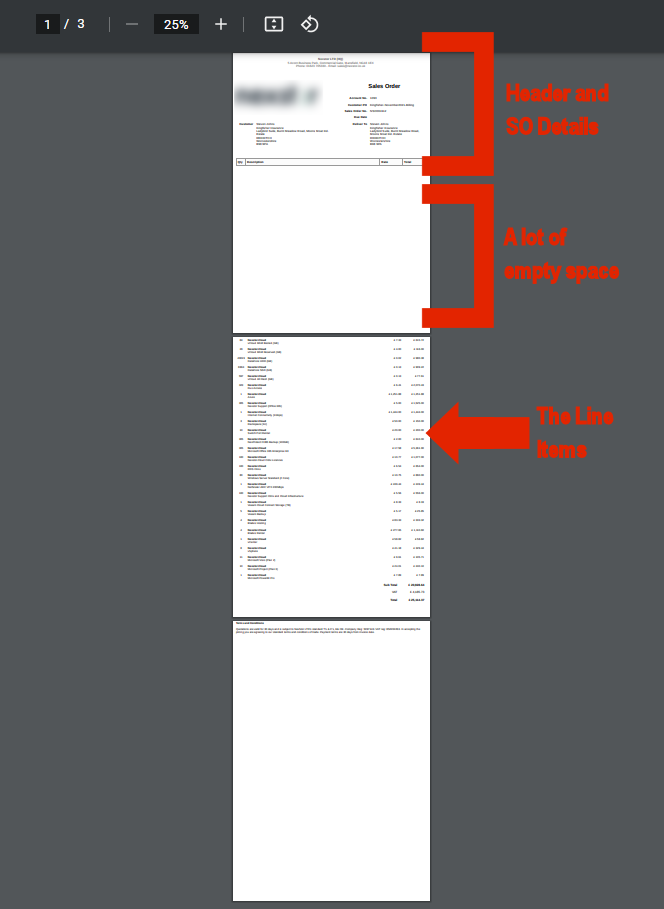
By default / out-of-the-box / vanilla, in a Zoho CRM Template, the table of line items will behave like this; specifically when there are a lot of line items as per my screenshot here:
How?
This has been raised a few times by multiple clients but the fix is rather quick as long as you can get to the HTML of the template:
- Login to ZohoCRM > Setup > Customization > Templates > Inventory > Select the template with this issue
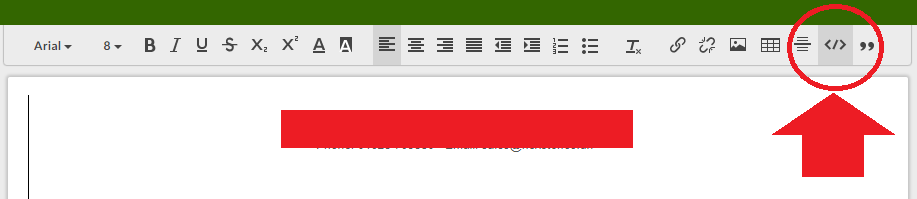
- Click on the "Edit HTML" icon in the top right of the editor:
- Find the code "page-break-inside"
- Change this from "avoid" to "auto":

- And optionally, add to the "<tr>" tag under "OrderedItems" class the code:
style="page-break-inside:avoid; page-break-after:auto"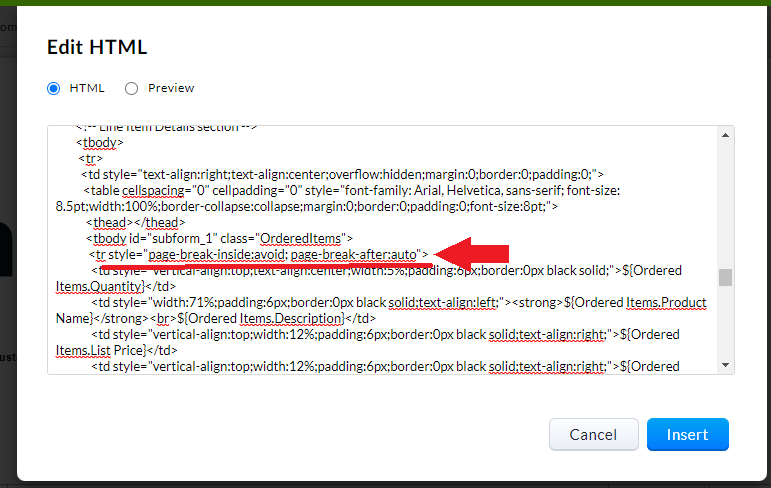
- Click on "Insert" and test!
Discussion
Comments
Questions, corrections and useful additions are reviewed before appearing here.
Discussion Newest first
No comments yet. Start the discussion.