What?
If your sales and support teams use different WhatsApp numbers, you can now bring more of those conversations into the same Zoho CRM organisation.
Zoho has expanded its WhatsApp Business integration to support multiple business accounts, several phone numbers within an account, and messaging through custom modules. The last part matters if your customer work lives in records such as bookings, memberships or service plans, rather than only Leads and Contacts. See Zoho's announcement.
You do not need to write code for the settings covered here. You do need to decide which team uses each number, where new enquiries should be recorded, and who will respond.
Why?
Consider a property-services business. The sales team handles new enquiries, while the service team arranges visits with existing customers. Both use WhatsApp, but customers need to recognise the right business number.
Keeping those lines in one CRM can make it easier for staff to work with the customer information they already maintain. It also gives the administrator a clearer place to manage the setup.
Three similar-sounding terms are worth separating:
- Business account: the WhatsApp business account managed through Meta. Think of it as the container for your business messaging setup.
- Phone number: the particular line a customer messages, such as your sales or service number. Adding a second number does not necessarily mean you need another business account.
- CRM module: a type of record. Leads and Contacts are familiar examples; a custom module is one your organisation has added, such as Appointments.
The setup should reflect how your business works. An extra number on its own does not define who answers it or where a new customer's details belong.
How?
1. Agree a simple plan before changing the settings
Write down the number, the team responsible for it, and the intended CRM record type. For our example business, the plan might be:
| Business line | Used for | What to decide |
|---|---|---|
| Sales | New quotation enquiries | Who owns a new enquiry and follows it up? |
| Service | Visits and appointment questions | Should the work be recorded against a Contact, an Appointment, or another suitable record? |
This is a planning example, not a promise that CRM will automatically route every message according to that table. Start with one line and an internal tester. Expand the setup once the checks below work.
2. Connect the business account you need
Have administrator access to CRM and the relevant Meta business setup ready. If WhatsApp is not connected yet, begin under Setup → Channels → Business Messaging and follow the WhatsApp connection process.
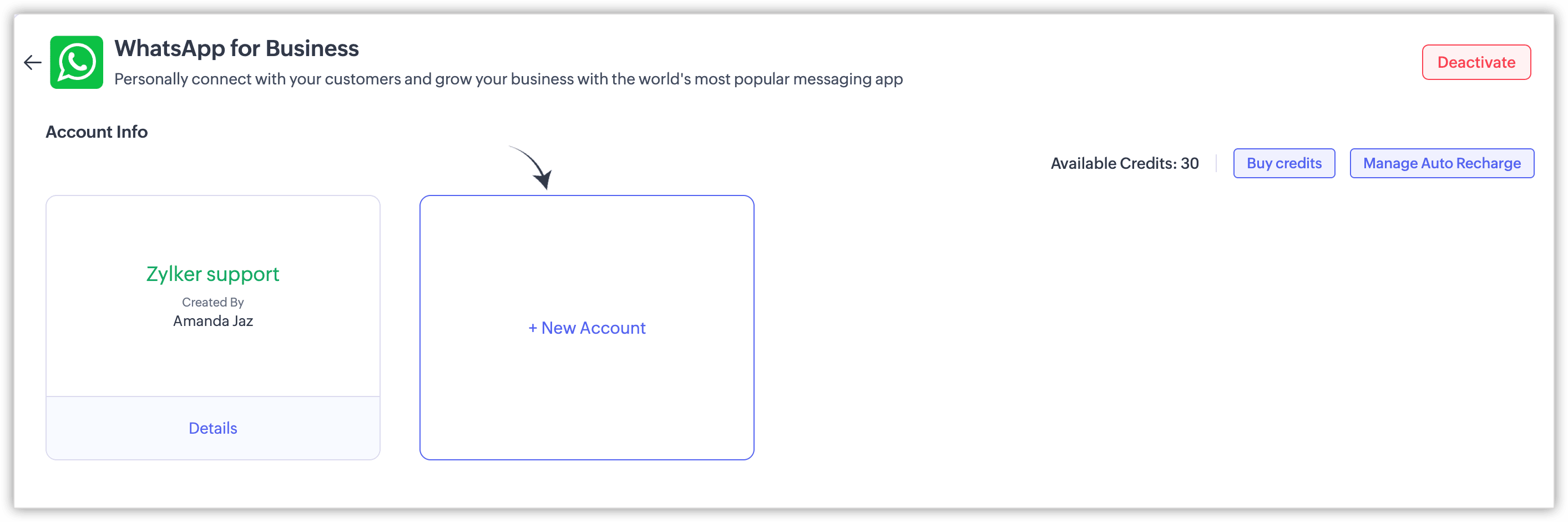
For another account, open the WhatsApp details page and use + New Account. Keep a note of which business account you authorise.
3. Add another number within the correct account
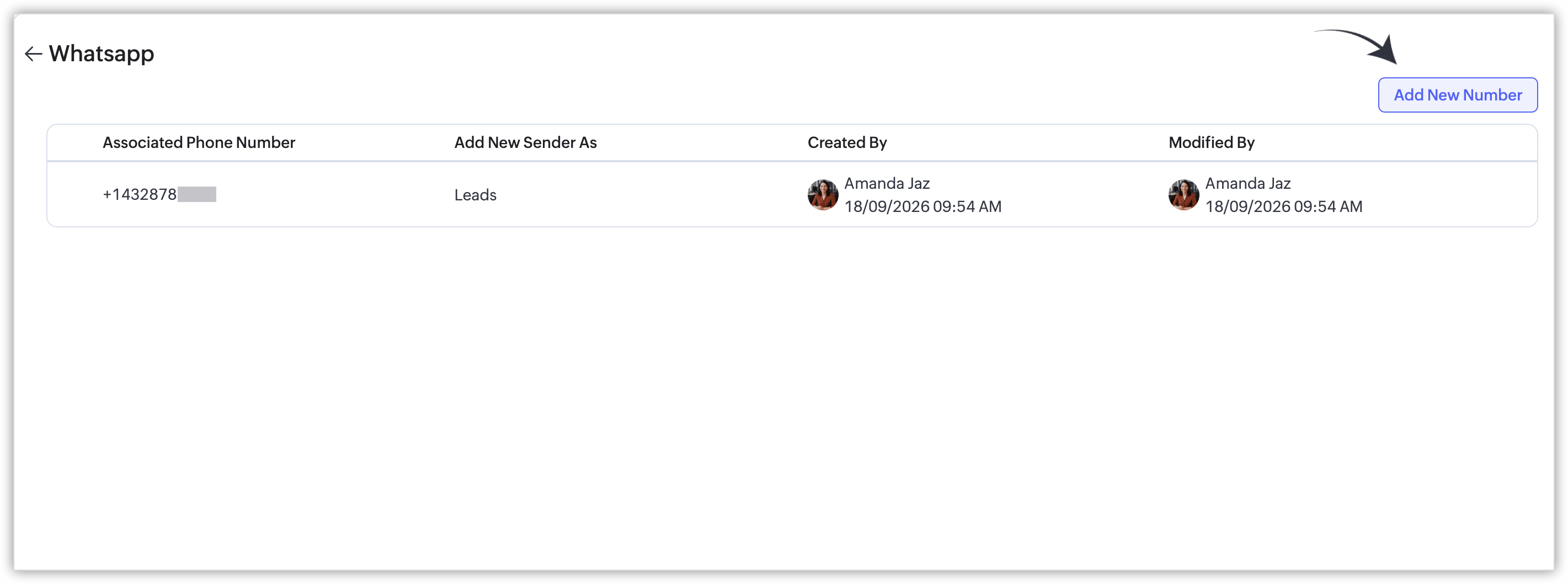
Open that account's Details, then choose Add New Number. Complete the connection steps and check that the intended line appears.
Give staff an agreed description for each line, such as sales or service. Before using an existing customer-facing number, confirm its eligibility and any migration arrangements rather than assuming its current WhatsApp setup will remain unchanged.
4. Enable messaging for the modules your team uses
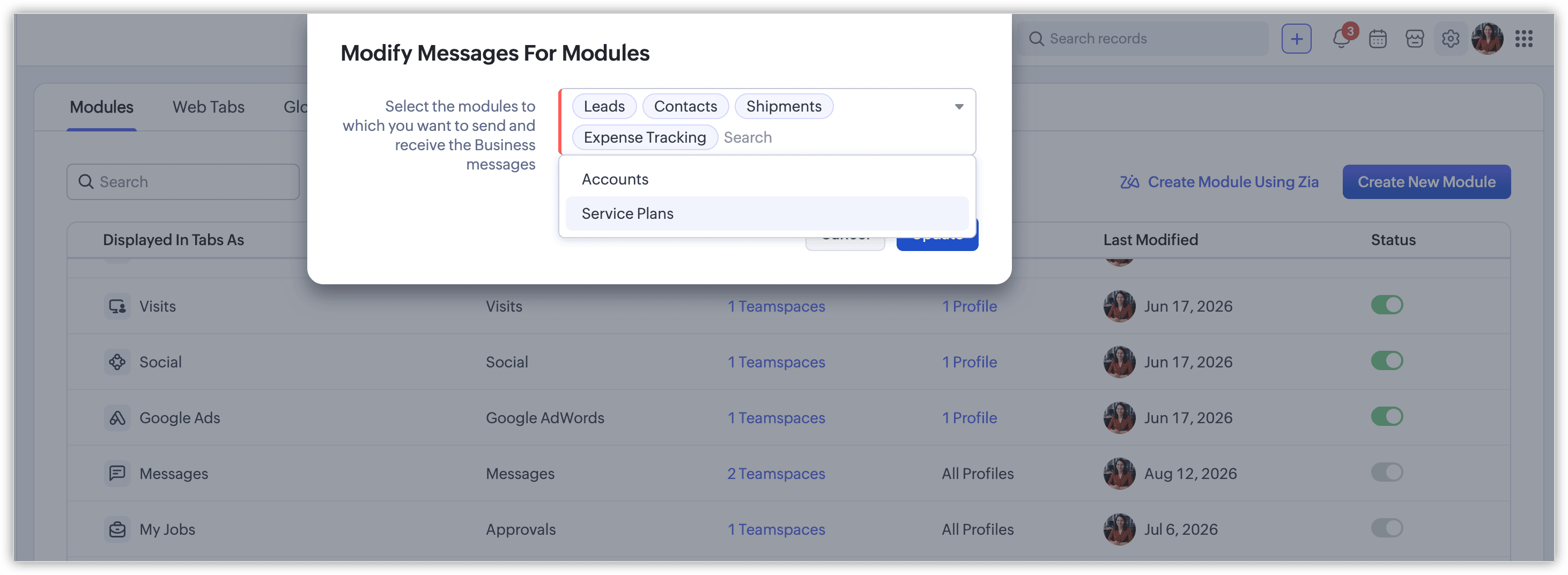
For an existing integration, go to Setup → Customization → Modules and Fields. Find Messages, open its more-options menu, and select Update Messages Modules. Add the required modules and save.
Choose the record types your staff actually work with. In our example, an Appointments module would only be useful if it already represents the visits the team manages.
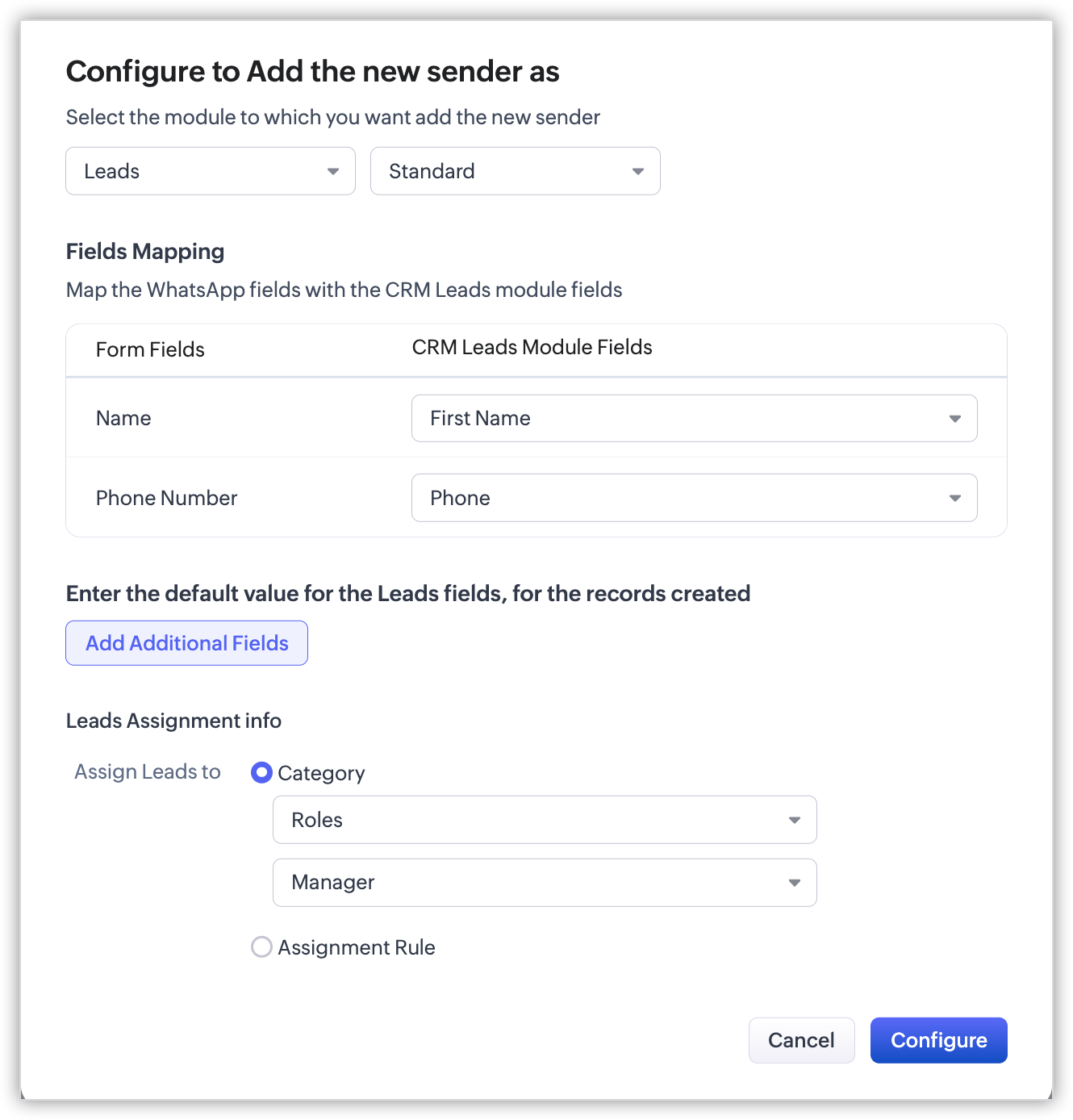
5. Decide what happens when a new person messages you
The configuration also lets you choose where a previously unknown sender is added, how their details fill CRM fields, and who owns the new record.
Field mapping simply means deciding where an incoming detail belongs. For example, the sender's name belongs in a name field, and their number belongs in a phone field. An assignment rule can decide who receives ownership of the new record.
Pay particular attention to the difference between an existing customer and a new sender. Test both; do not assume a setting for creating new records also defines every conversation-matching rule.
6. Run a small pilot before involving customers
Ask a colleague to use a test phone and work through these checks for each business line:
- Known sender: message from a number already recorded in CRM. Check which record and conversation receive it.
- New sender: use a number not already recorded. Check the new record's module, populated details and owner.
- Reply: respond from CRM and check which business number the tester sees.
- Staff access: ask the person who will handle the enquiry to open the conversation and respond.
- History: confirm that the next member of staff can find the conversation where your process expects it.
Record the result and any change needed. A second number is ready for the team only when the sender, record and responsible person are all clear.
Remember: extra accounts and modules do not remove WhatsApp's messaging rules. Approved templates are needed for relevant outbound messages, free-text replies have a limited response window, and messaging charges may apply. Check the current Zoho guidance before planning customer follow-ups.
Sources and screenshots
This guide adapts Zoho's enhancement announcement and its WhatsApp integration help article, checked on 26 October 2026. Screenshots are Zoho's published examples, not screenshots from a client's account.
Discussion
Comments
Questions, corrections and useful additions are reviewed before appearing here.
Discussion Newest first
No comments yet. Start the discussion.