
So this is going to be an article with a bunch of pictures showing step-by-step of how I setup a recurring data source in Zoho Analytics via FTP.
Why?
The use-case here is that I have a client who wants to import data via FTP (SFTP - to be precise) and have this available to their Zoho apps. My aim(s) are:
- Setup recurring FTP connection.
- Make data readily available to ZohoCRM.
How?
Well, let's setup the FTP connection first in Zoho Analytics:
- Login to Zoho Analytics
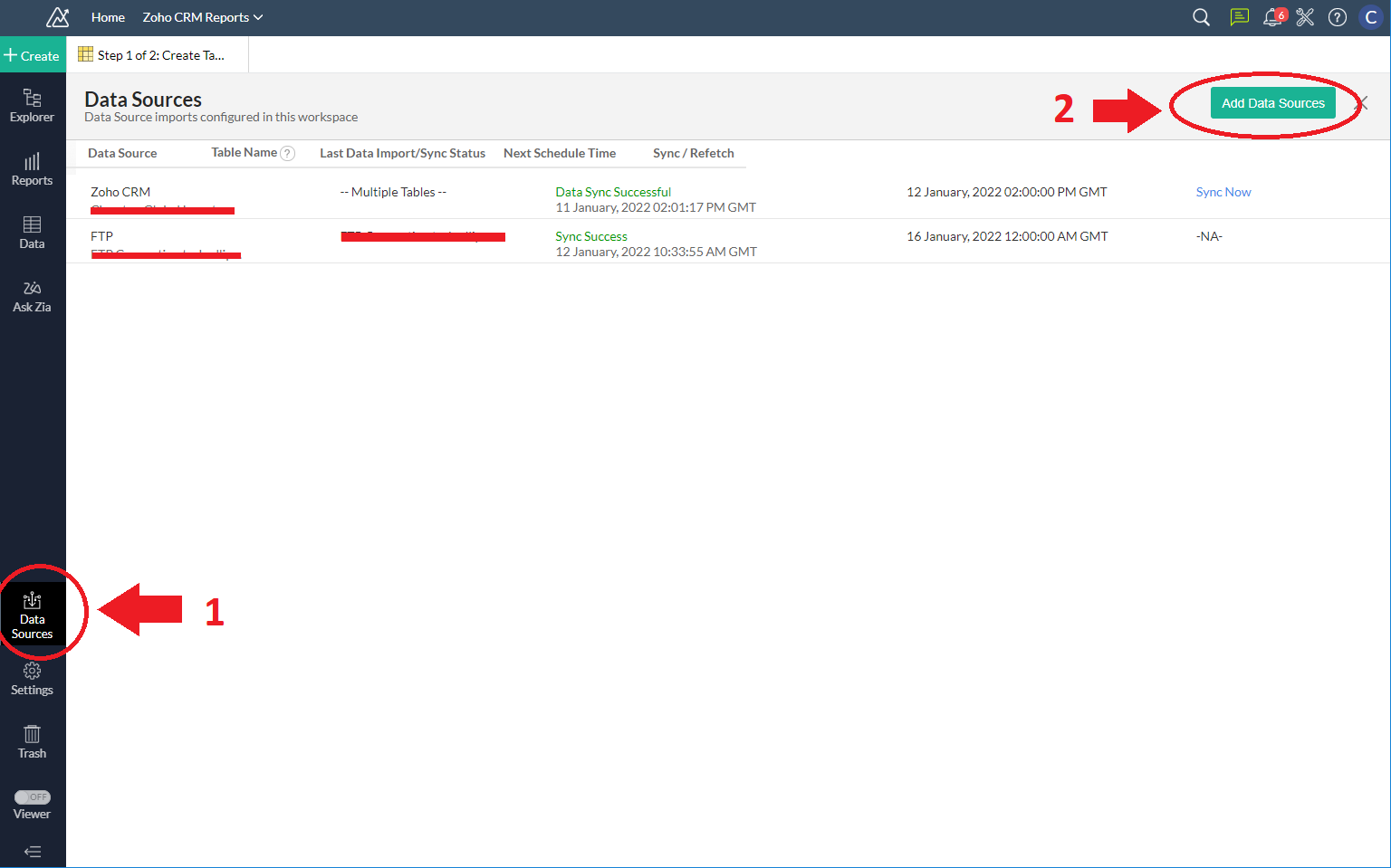
- Click on "Data Sources" in the left sidebar then click on "Add Data Sources" in the top right:
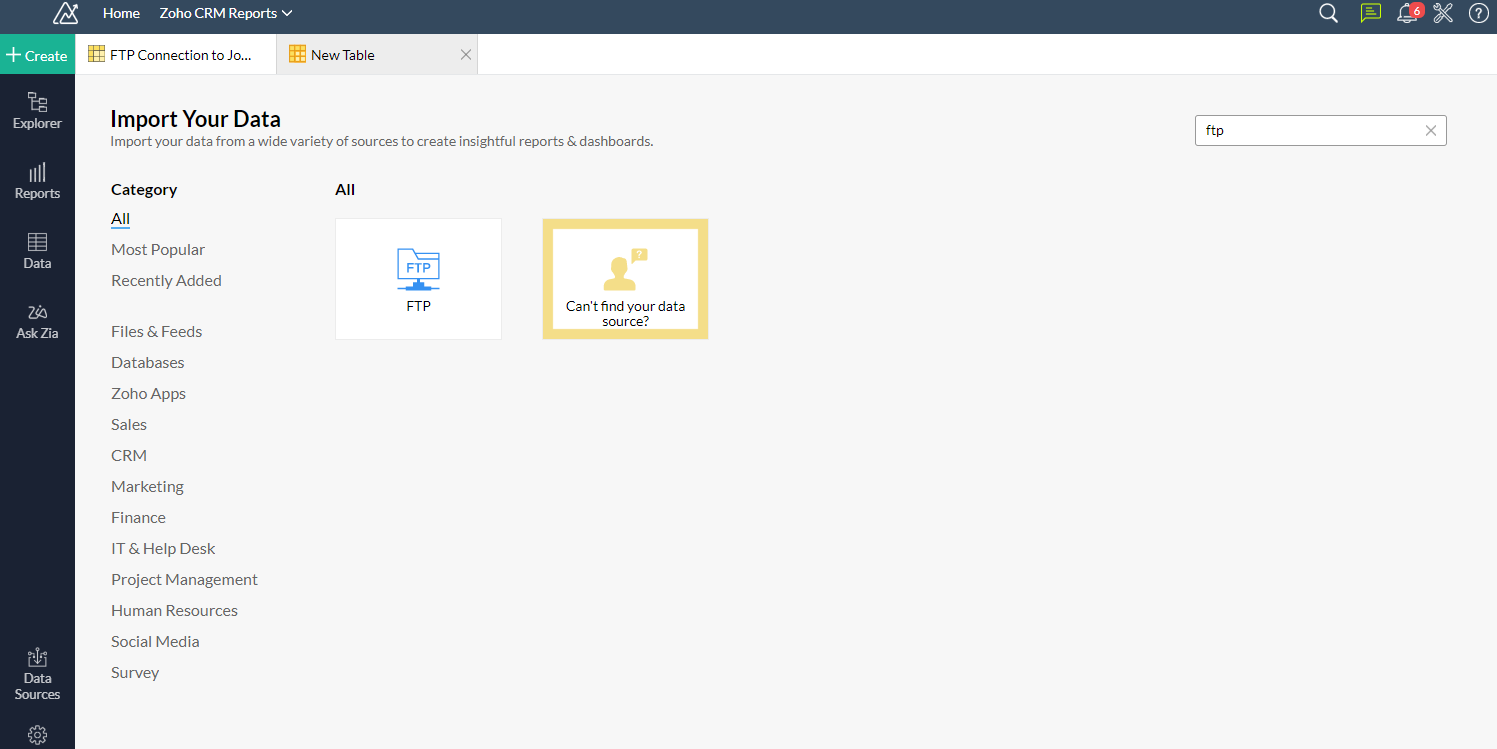
- Type FTP in the filter field in the top right and there should be a single FTP option displayed to you:
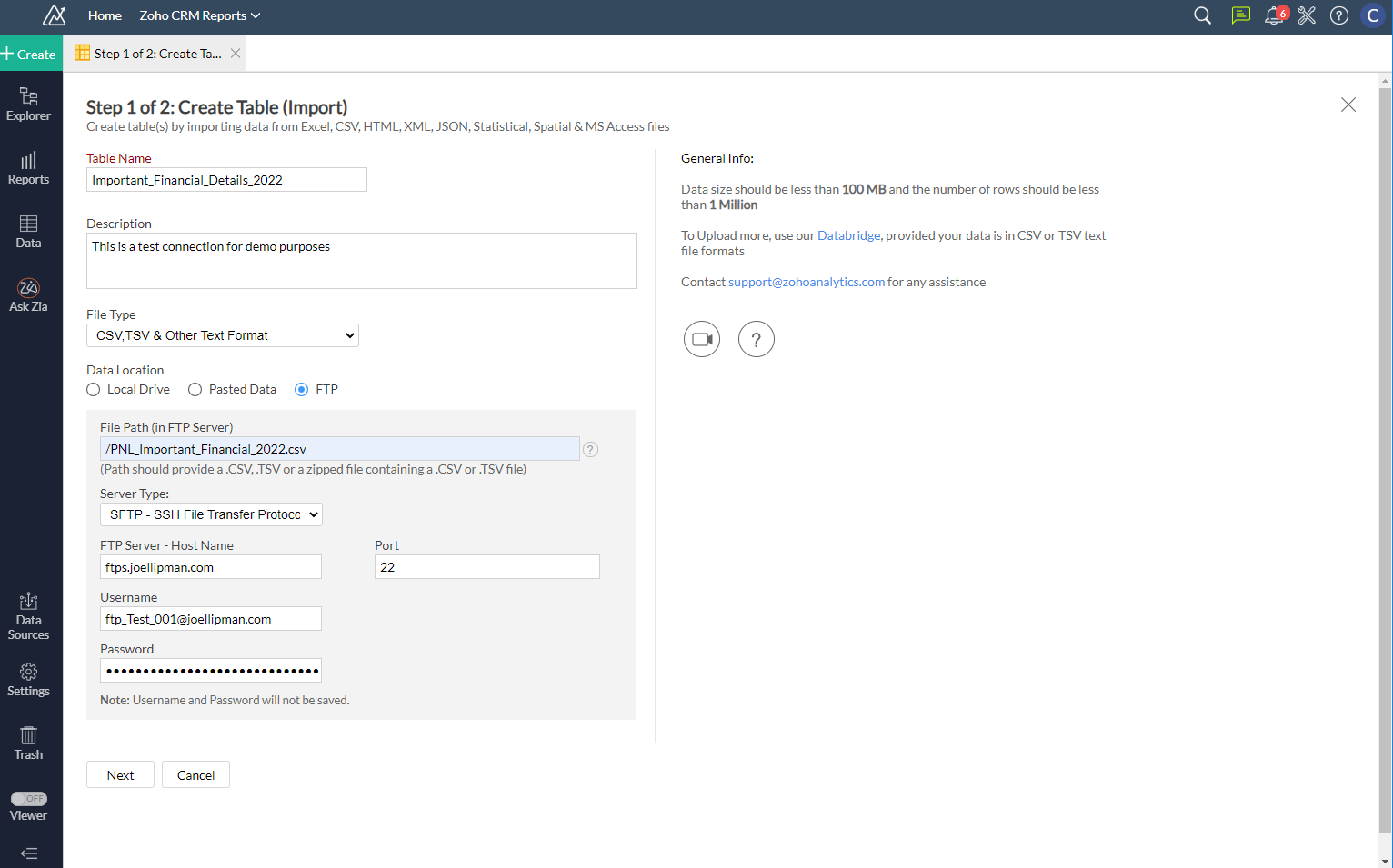
- Step 1 of 2: Give the datasource the table name it will have in Zoho Analytics, a description and then enter in the FTP details as per your configuration, then click on "Next":
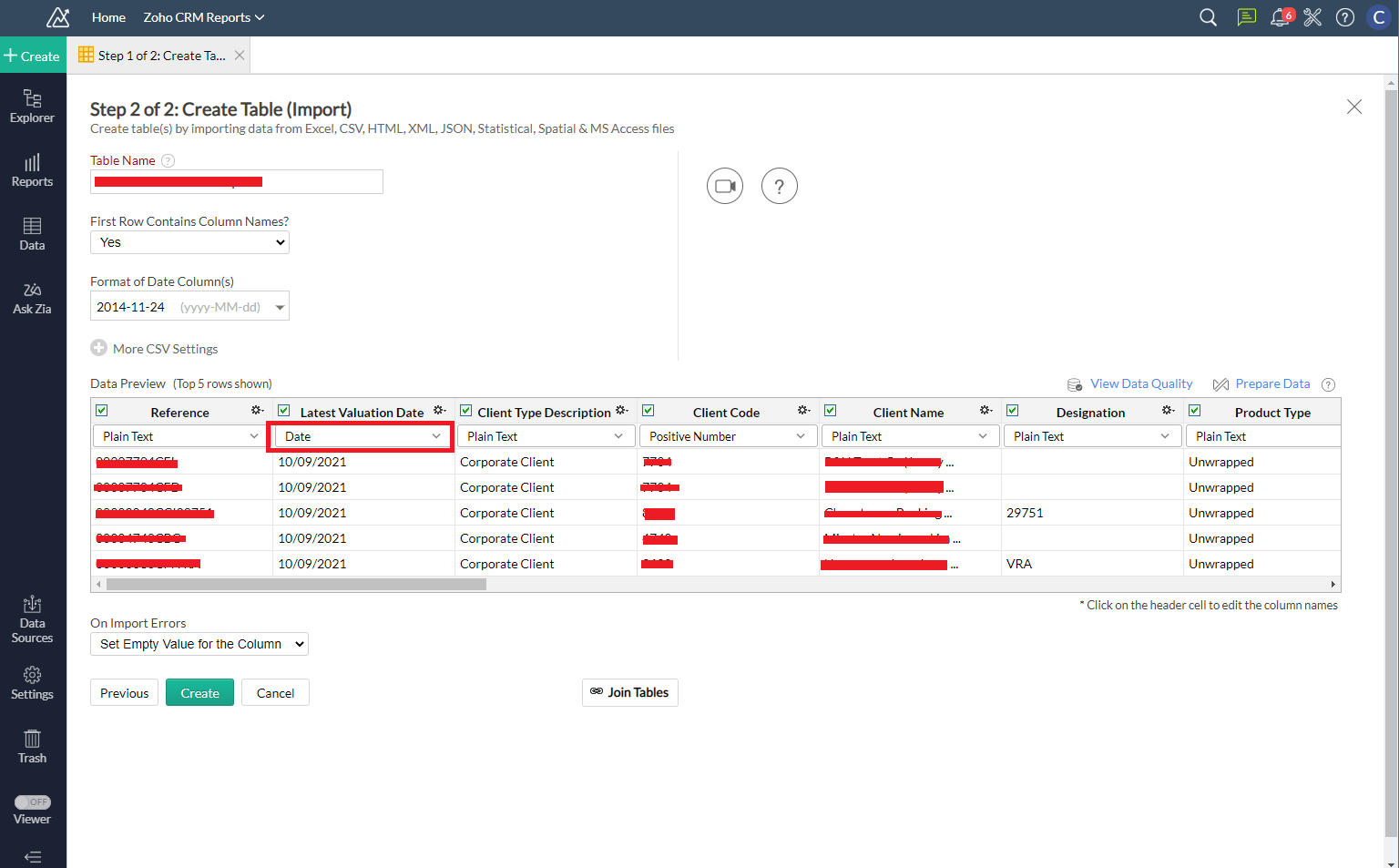
- Step 2 of 2: specify whether first row are headers/column/field names. If necessary, specify the format of the data per column (in this example, I highlight the Date column, it then prompted me what format this is in, eg. dd/MM/yyyy):
- You will then be shown a summary of your import:
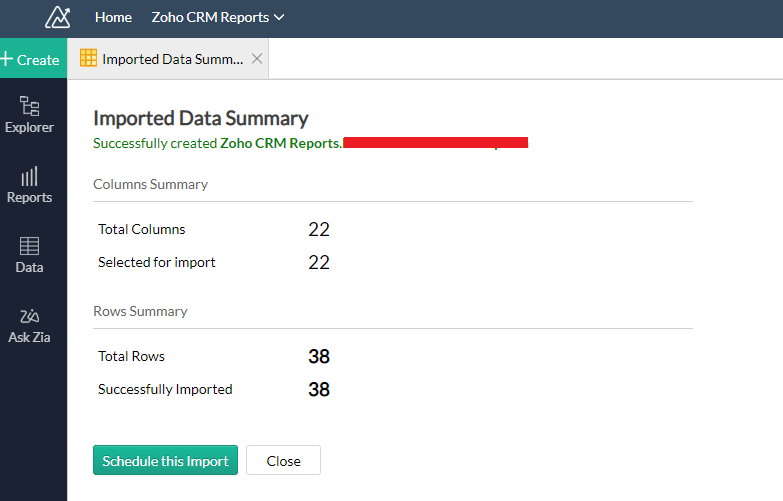
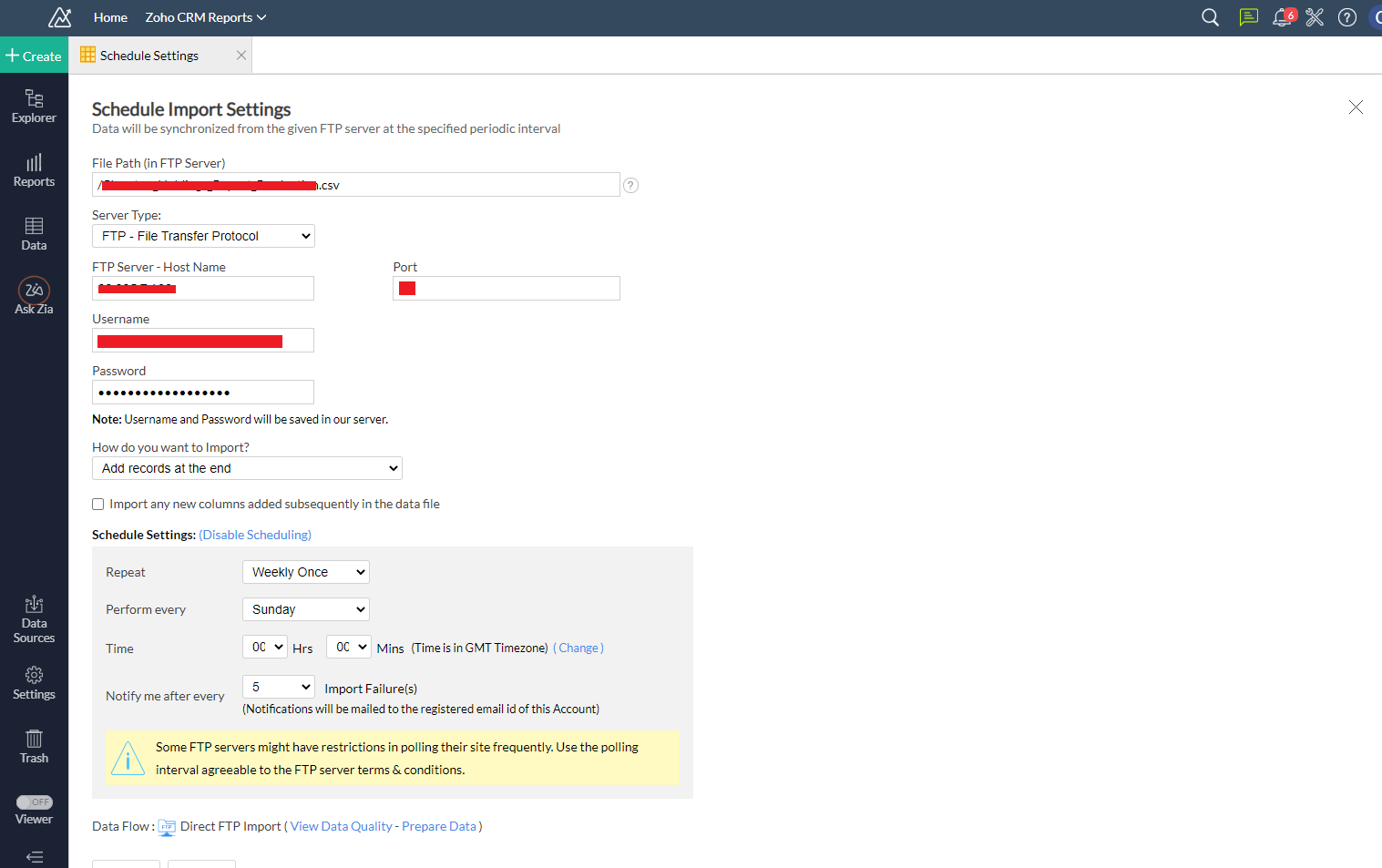
- You can then setup a schedule for the import to automatically download the data file regularly:
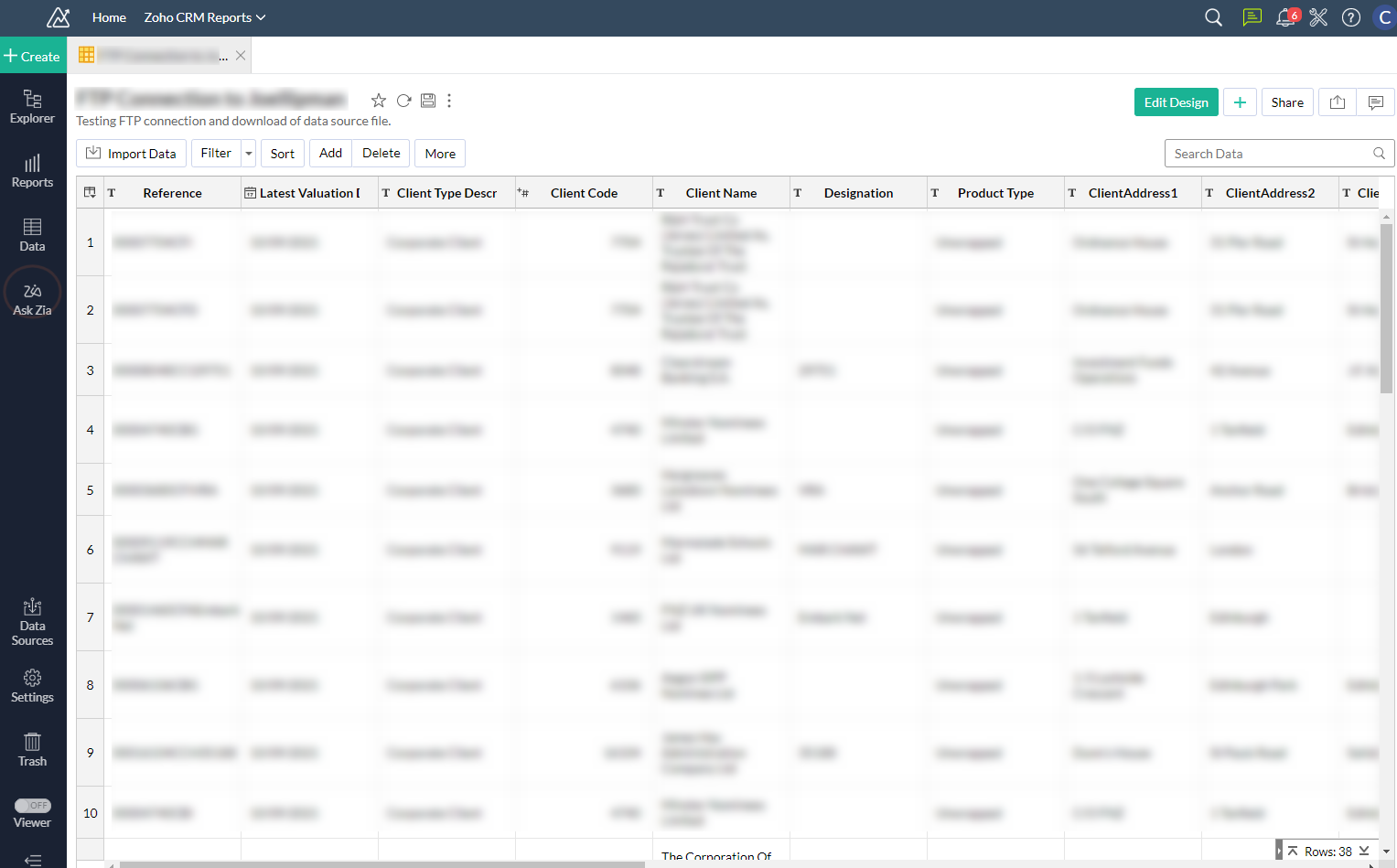
- After all that you will be shown your data table:
Additional Note(s):
Here are some notes & settings you may need on your quest to setup Zoho Analytics FTP Data Sources:
- Zoho Analytics IP Addresses to whitelist (if necessary):
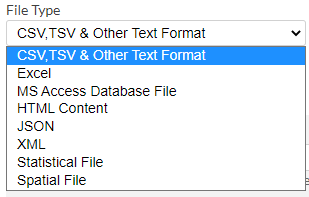
// EU Data Centers 31.186.226.0 - 31.186.226.255 185.20.209.0 - 185.20.209.255 87.252.213.0 - 87.252.213.255 84.207.209.0 - 84.207.209.255 185.20.211.0 - 185.20.211.255 31.186.243.0 - 31.186.243.255 89.36.170.0 - 89.36.170.255 217.163.72.0 - 217.163.72.255 213.244.146.0 - 213.244.146.255 185.230.214.0 - 185.230.215.255 // US Data Centers 136.143.178.0 - 136.143.179.255 136.143.176.0 - 136.143.177.255 136.143.190.0 - 136.143.190.255 - The file on the FTP server to download can be of type: CSV, TSV, Text, Excel, MS Access DB, HTML, JSON, XML and others:
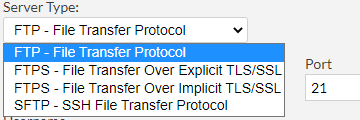
- Supports server types of FTP, FTPS - File Transfer over Explicit TLS/SSL, FTPS - File Transfer Over Implicit TLS/SSL, and SFTP - SSH File Transfer Protocol on a Port number of your choosing:
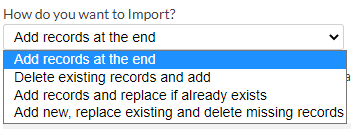
- Set for new imports to append, replace, or check if exists then insert/replace:
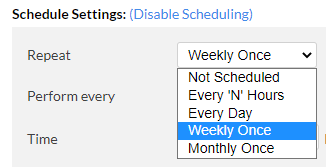
- Schedule to repeat: Every X Hours, Every Day, Weekly, Monthly:
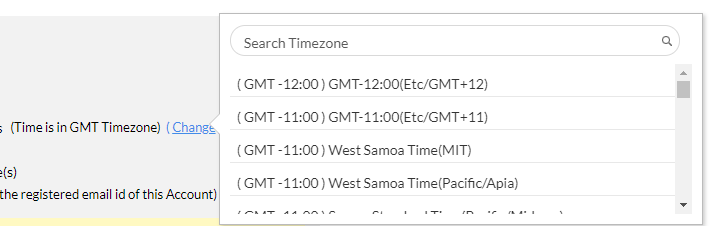
- Schedule with Timezone specified (click on the "(Change)" link next to timezone:
Error(s)
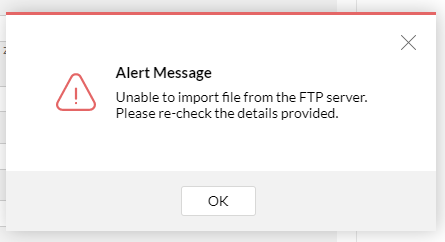
- Unable to import file from the FTP server:
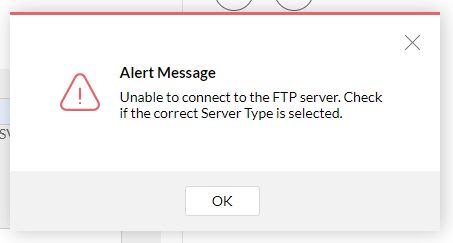
- Unable to connect to the FTP server:
Discussion
Comments
Questions, corrections and useful additions are reviewed before appearing here.
Discussion Newest first
No comments yet. Start the discussion.